Stock transfers
Stock transfers move products from the current point of sale to another warehouse (point of sale) or to a customer. Use them for multi-warehouse logistics or to prepare a delivery note for a shipment.
Accessing stock transfers
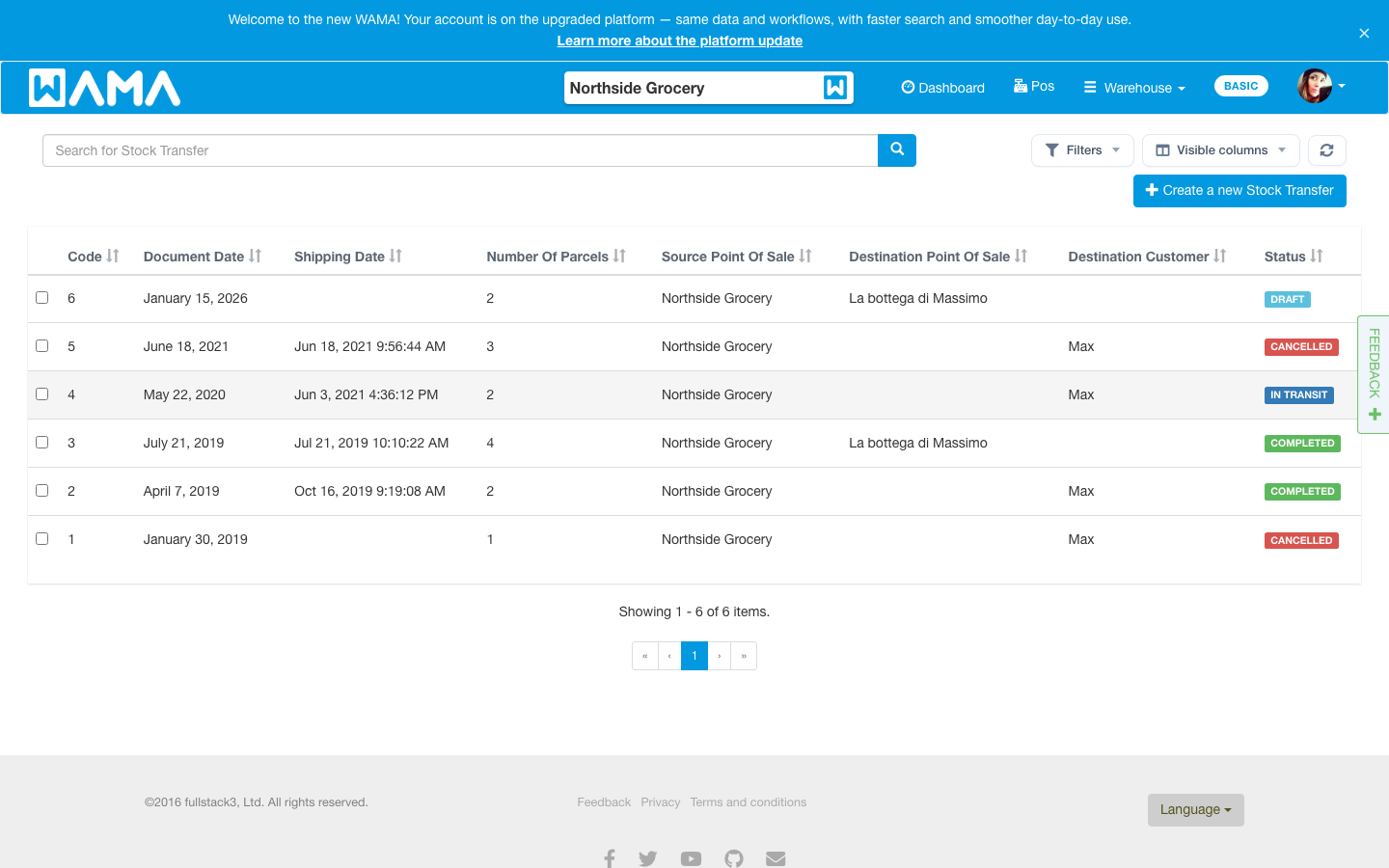
Section: Top menu Warehouse > Stock transfer, or go to Stock transfers.
Create a stock transfer
- Click Create a new Stock Transfer.
- Choose the Destination: a Point Of Sale or a Customer (one or the other).
- Optionally set a Delivery Address and other delivery details.
- Add product lines (maximum 100 lines).
- Click Save. The transfer is created in Draft status.
The origin warehouse is always the point of sale you are currently using.
Statuses
- Draft: The transfer can be edited. Stock is not moved yet.
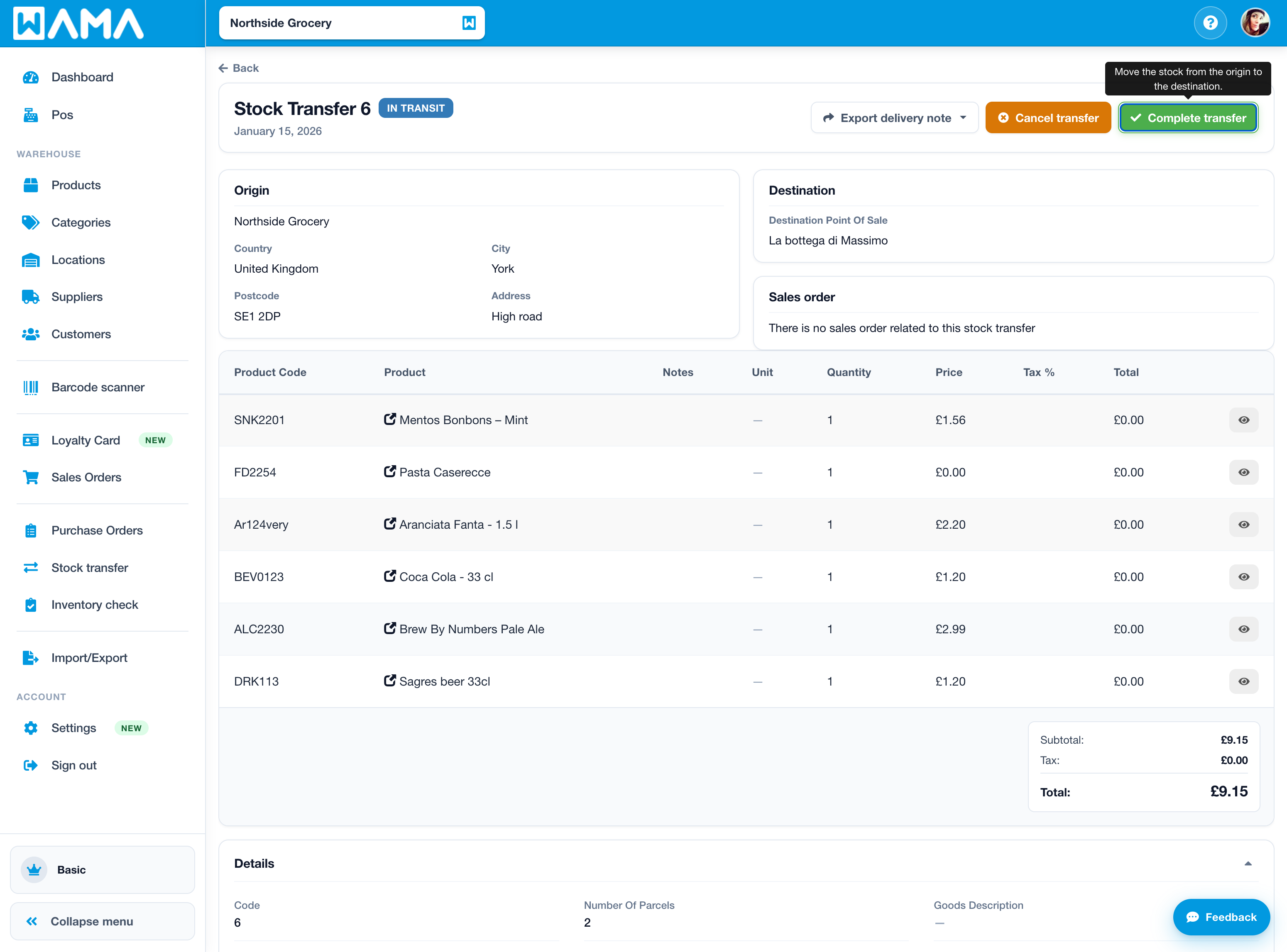
- In transit: Click Start transfer. Goods are considered leaving the origin warehouse.
- Completed: Click Complete transfer. Stock is updated at the destination (for a point of sale destination).
- Cancelled: Click Cancel transfer. The transfer will not be completed.
Only Draft transfers can be edited.
Complete with optional receiver signature
When a transfer is In transit, click Complete transfer. A Stock transfer completion dialog opens.
In the dialog you can optionally:
- Enter a Receiver signature name.
- Draw a signature on the pad (use Clear to erase and redraw).
Then choose:
- Confirm and complete — completes the transfer and stores the signature when one was drawn.
- Complete without signature — completes the transfer and skips signing.
- Cancel — closes the dialog without changing status.
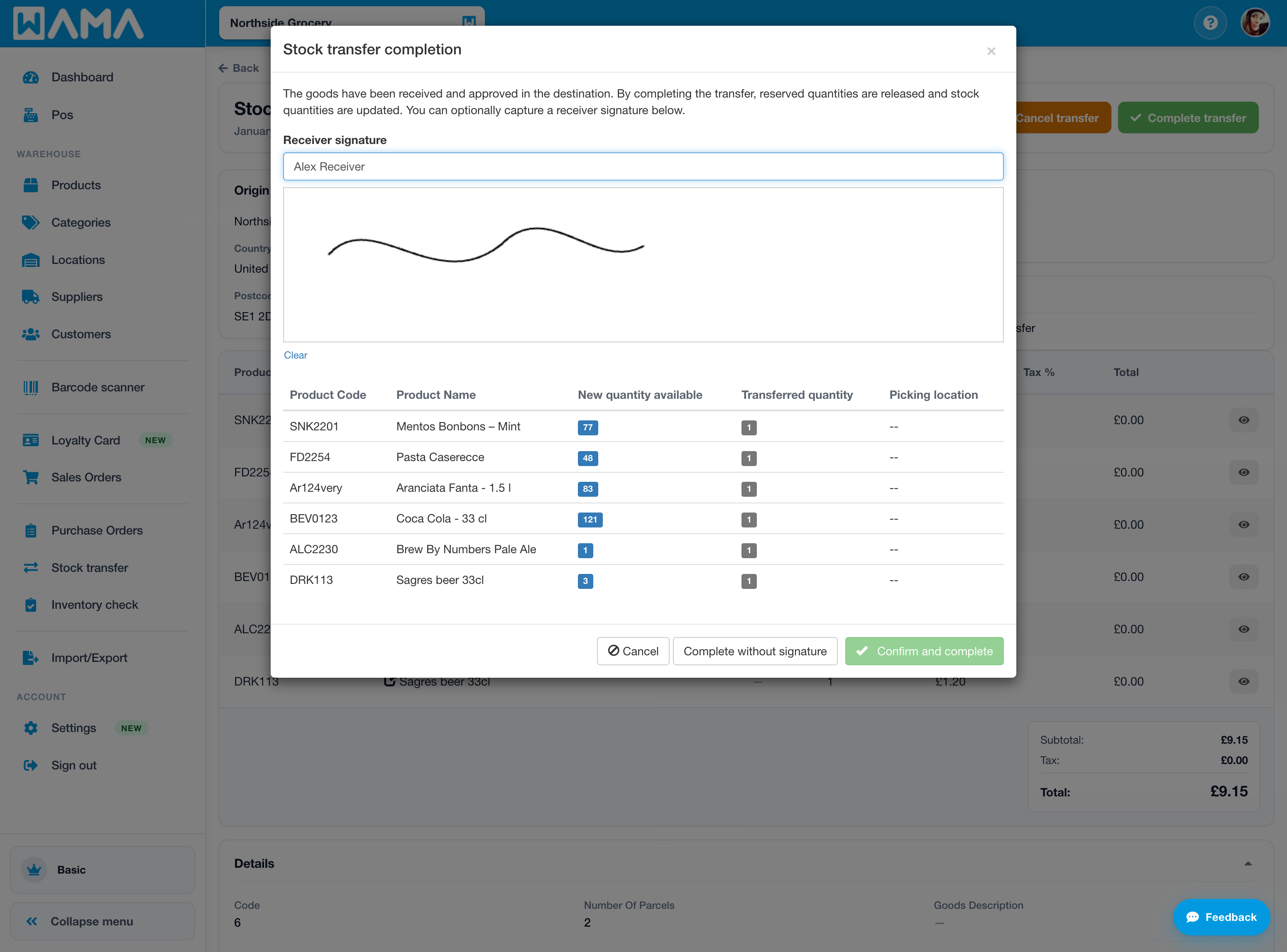
The signature is optional. Completing always updates stock; signing is for proof of delivery on the delivery note when needed.
Lot numbers and expiry dates
When the Lot numbers and/or Expiry dates modules are enabled, each transfer line can include a Lot and/or Expiry (best before) date.
- Only lot numbers with available stock for that product are shown.
- To ship the same product from several lots or expiry dates, use Split line by lot/expiry and set the lot or expiry and quantity on each line.
See also Lot numbers and Expiry dates.
Note
Lot numbers and expiry dates cannot be set on stock transfers created from a sales order.
Delivery note PDF
From an open transfer, use Export delivery note > Download as PDF to generate a stock transfer PDF for shipping or paperwork.
Notifications
In Settings > Notifications you can enable alerts when a transfer is Moved to in transit or Completed. See Notifications.
Note
Android app: See Stock transfers (Android) for the mobile app workflow, including on-device signature capture.