Product packaging
Product packaging lets you sell and receive goods in packs or cases while stock stays in base units. Each packaging unit has a label, conversion factor, optional barcode, and optional defaults for purchase and sale.
Note
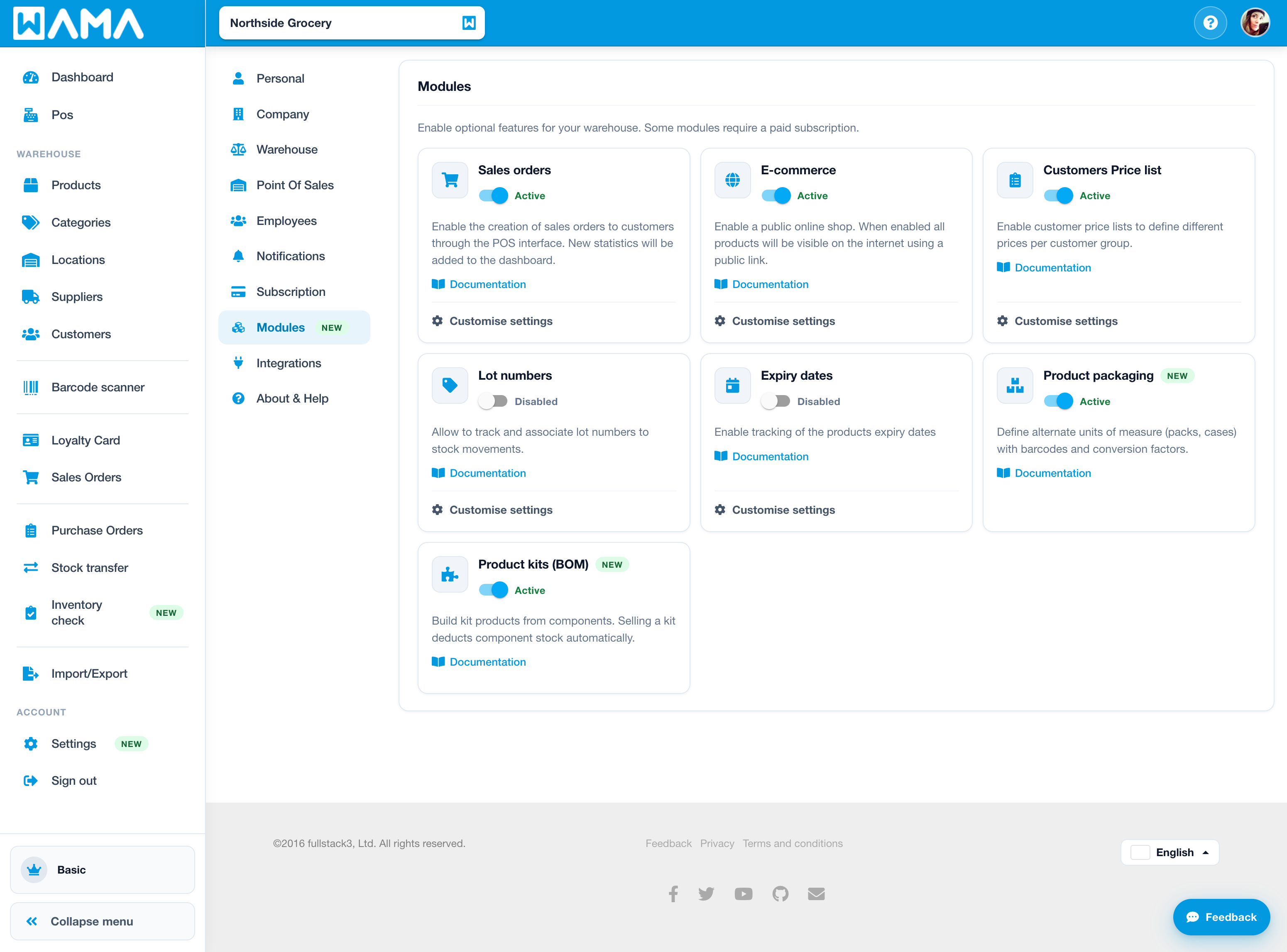
Product packaging is not enabled by default. Enable the Product packaging module in Settings > Modules. A paid subscription is required.
For kits made of several products, see Product kits (BOM). On Android, see Product packaging.
Activate product packaging
- Open Settings from the user menu and click Modules.
- Find Product packaging and switch it to Active.
Configure packaging on a product
Section: Products > open a product > Edit
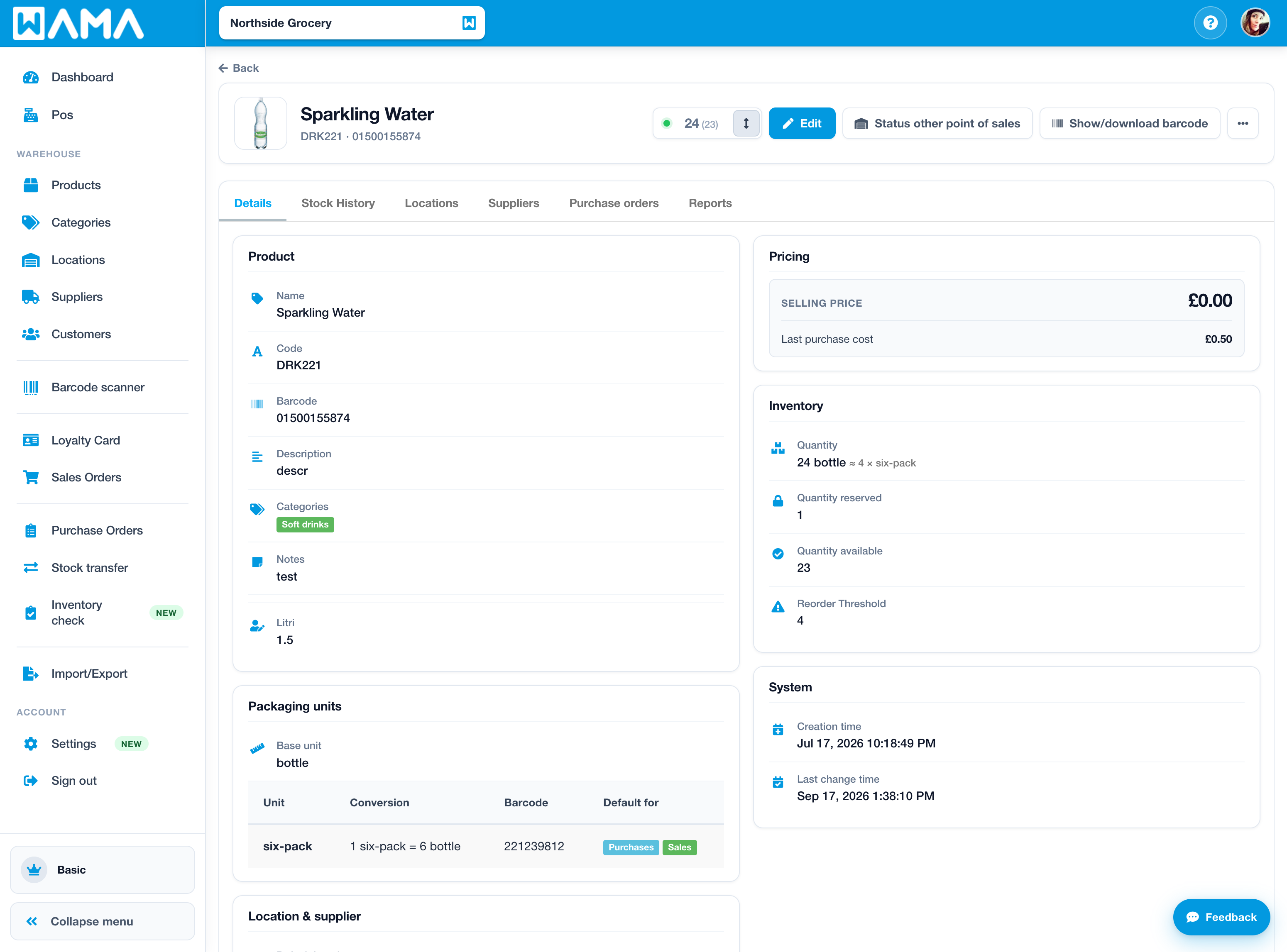
- Open the product (for example code
DRK221) and click Edit. - In Packaging units, set an optional base unit label (for example Each).
- Click Add packaging to define a pack or case:
- Label — name shown in pickers (for example Case)
- Units per pack — how many base units one pack contains (must be greater than 1)
- Barcode — optional barcode for scanning that pack
- Default for purchase / Default for sale — unit pre-selected on purchase orders and sales (you can still change it per line)
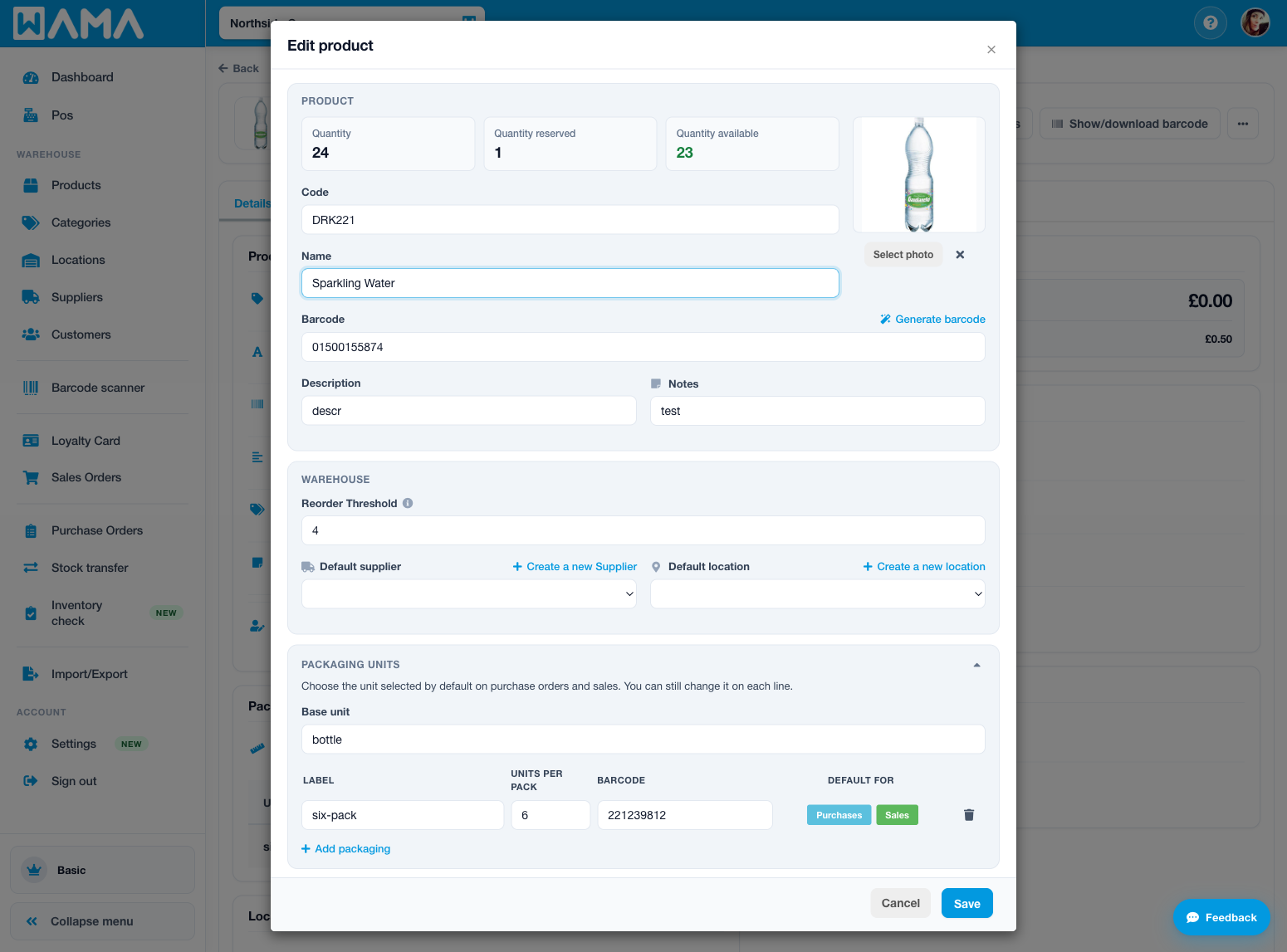
- Save the product.
Tip
Pack barcodes share the same scan space as product barcodes in the point of sale. Prefer unique barcodes per packaging unit.
Stock movements
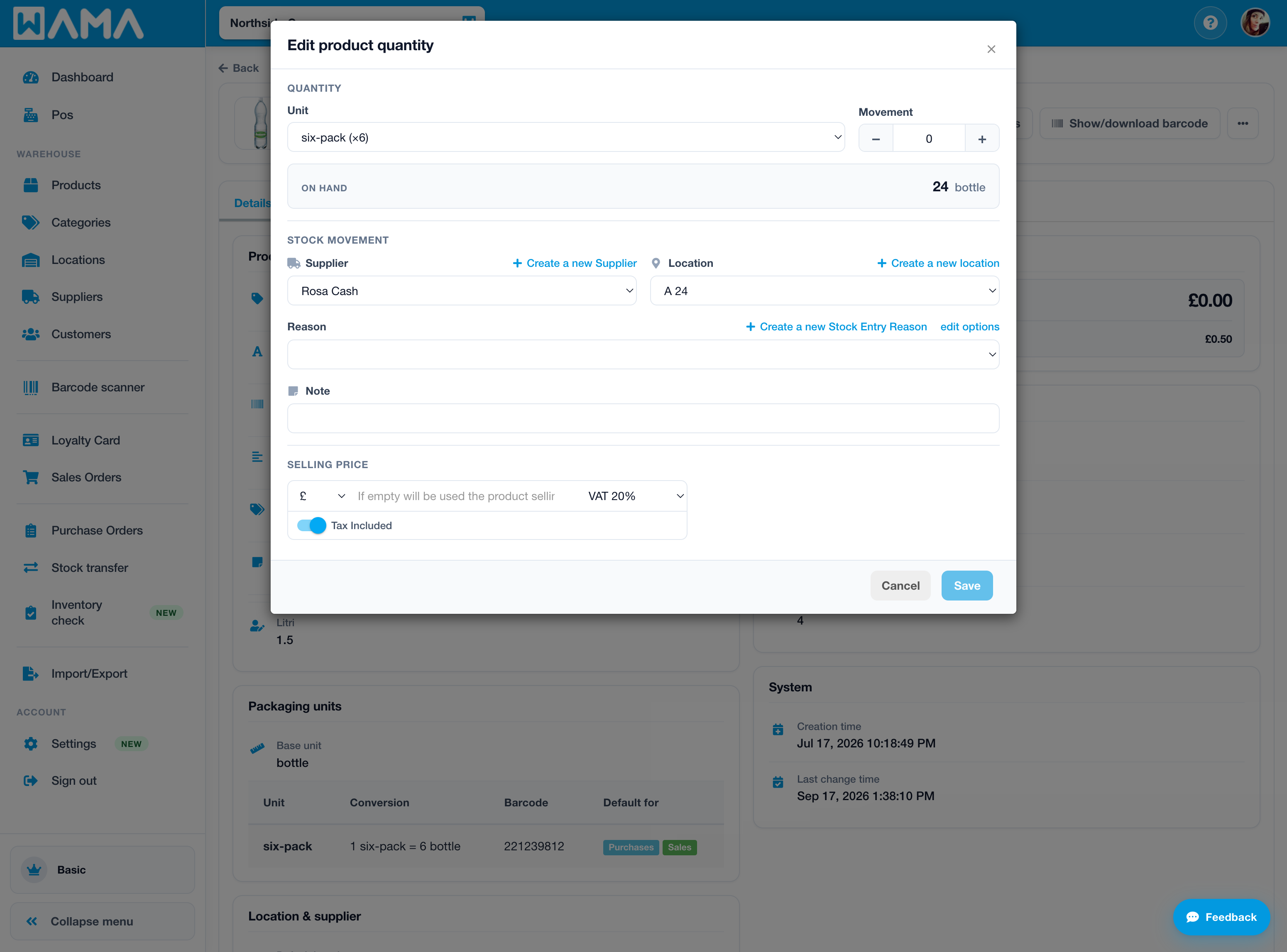
When you change quantity, choose the Unit (base or a packaging unit). Enter the quantity in that unit; WAMA stores stock in base units.
Sales (POS)
Section: Pos
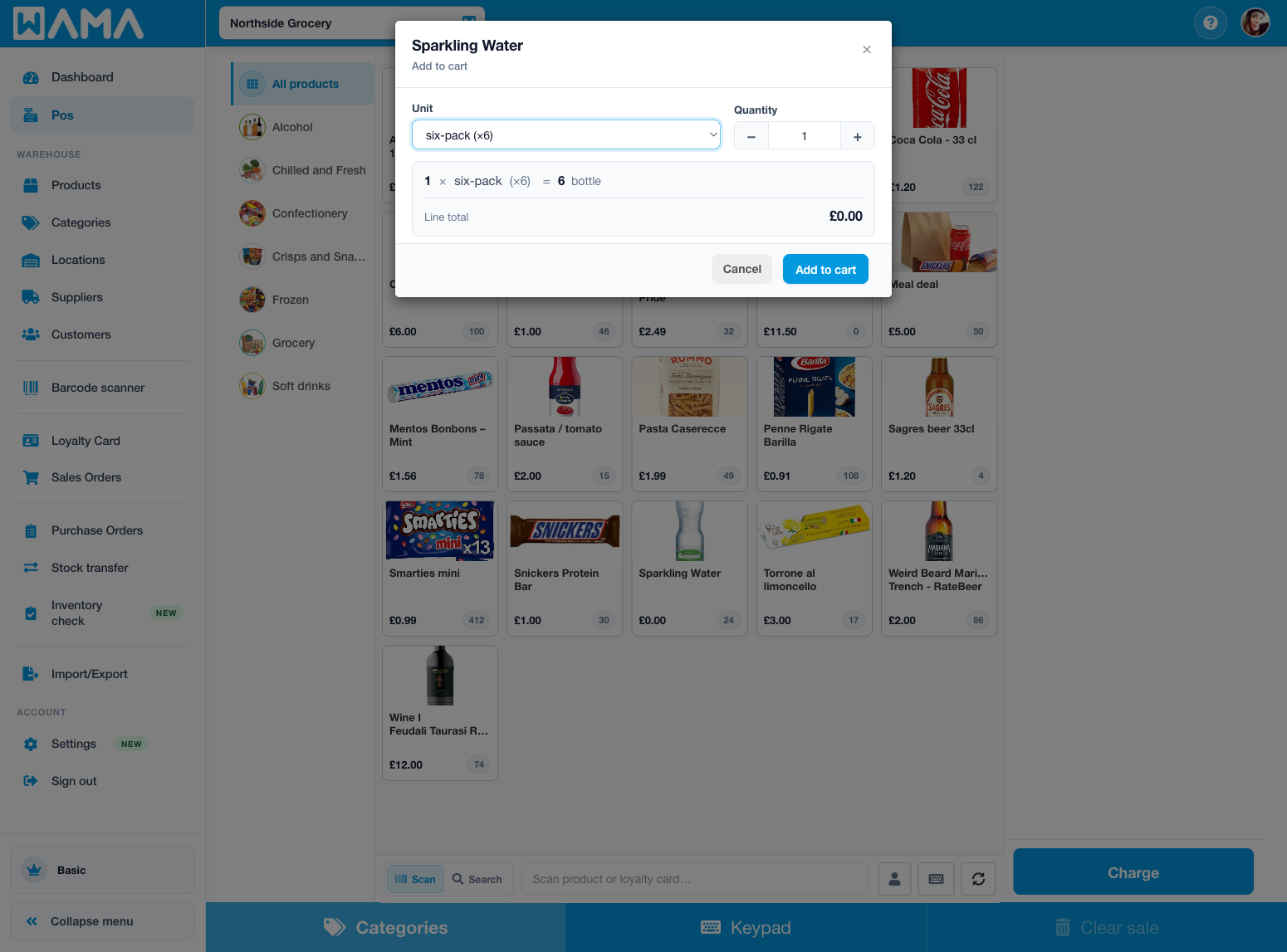
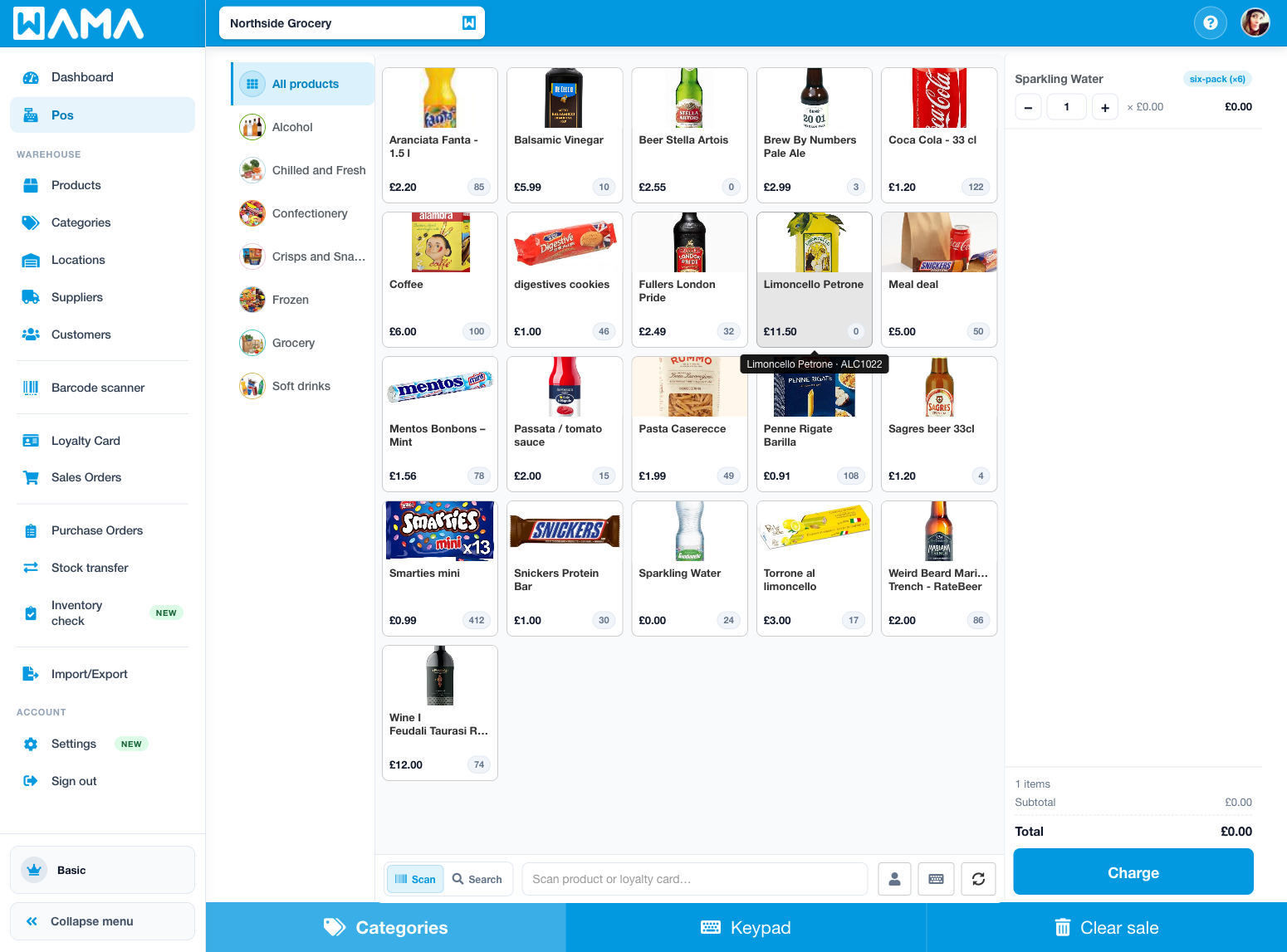
- Open Pos and add a product that has packaging (for example
DRK221). - On the line, open the Unit selector and choose the packaging unit (for example six-pack).
- Enter the quantity in that unit. Selling 1 six-pack with factor 6 bills and deducts 6 base units.
Purchase orders and stock transfers
Packaging units are also available when you:
- Add lines on a purchase order
- Move stock with a stock transfer
Choose the Unit on the line the same way as on POS or stock quantity changes. Quantities are always converted and stored in base units.