Product kits (BOM)
Product kits (bill of materials) let you sell a kit made of several component products. Completing a sale deducts stock according to the kit stock mode.
Note
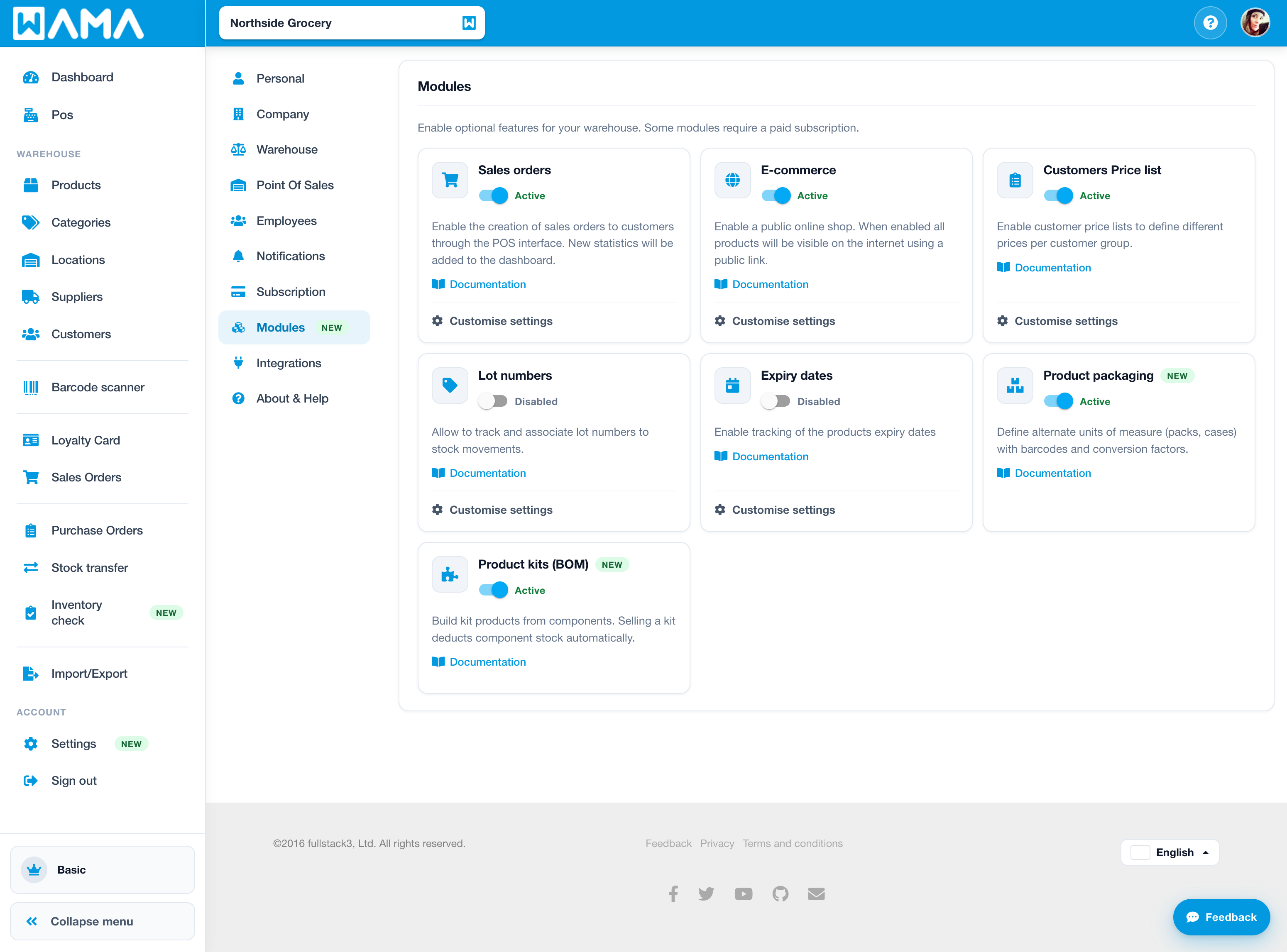
Product kits are not enabled by default. Enable Product kits (BOM) in Settings > Modules. A paid subscription is required. Kit setup (components and stock mode) is configured on the web; Android can sell kits when the module is on.
For pack/case units on a single product, see Product packaging. On Android, see Product kits.
Activate product kits
- Open Settings > Modules.
- Find Product kits (BOM) and switch it to Active.
Create or edit a kit product
Section: Products > create or edit a product
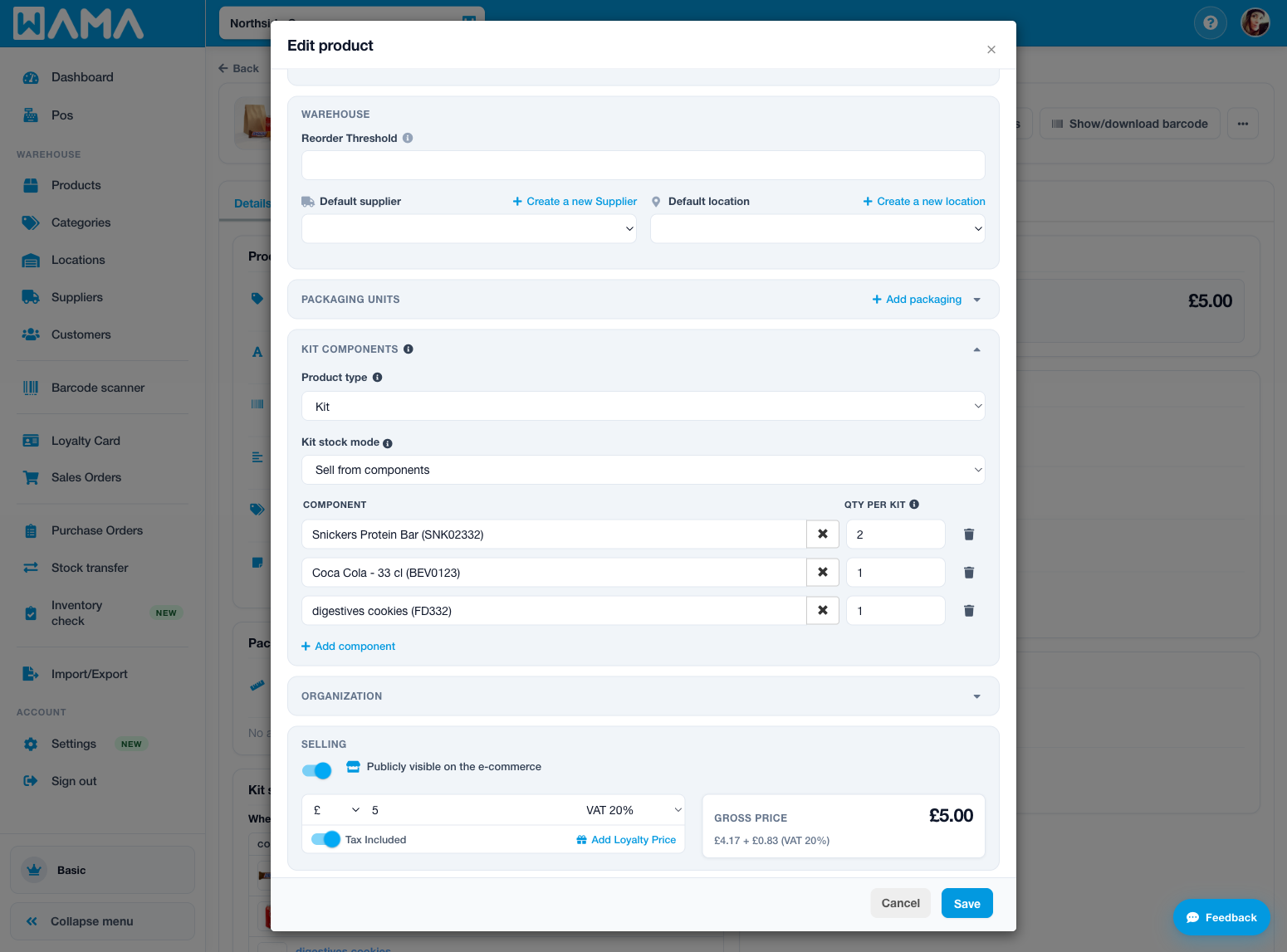
- Set Product type to Kit.
- Choose Kit stock mode:
- Sell from components — completing a sale deducts component stock (phantom kit). Packing ready-made kits is optional.
- Pack and sell assembled kits — pack kits first; sales deduct kit on-hand.
- Under Kit components, click Add component, search for products, and set Qty per kit for each line.
- Save the product.
Note
Add at least one component before packing or selling the kit. Empty bills of materials are rejected.
Selling a kit
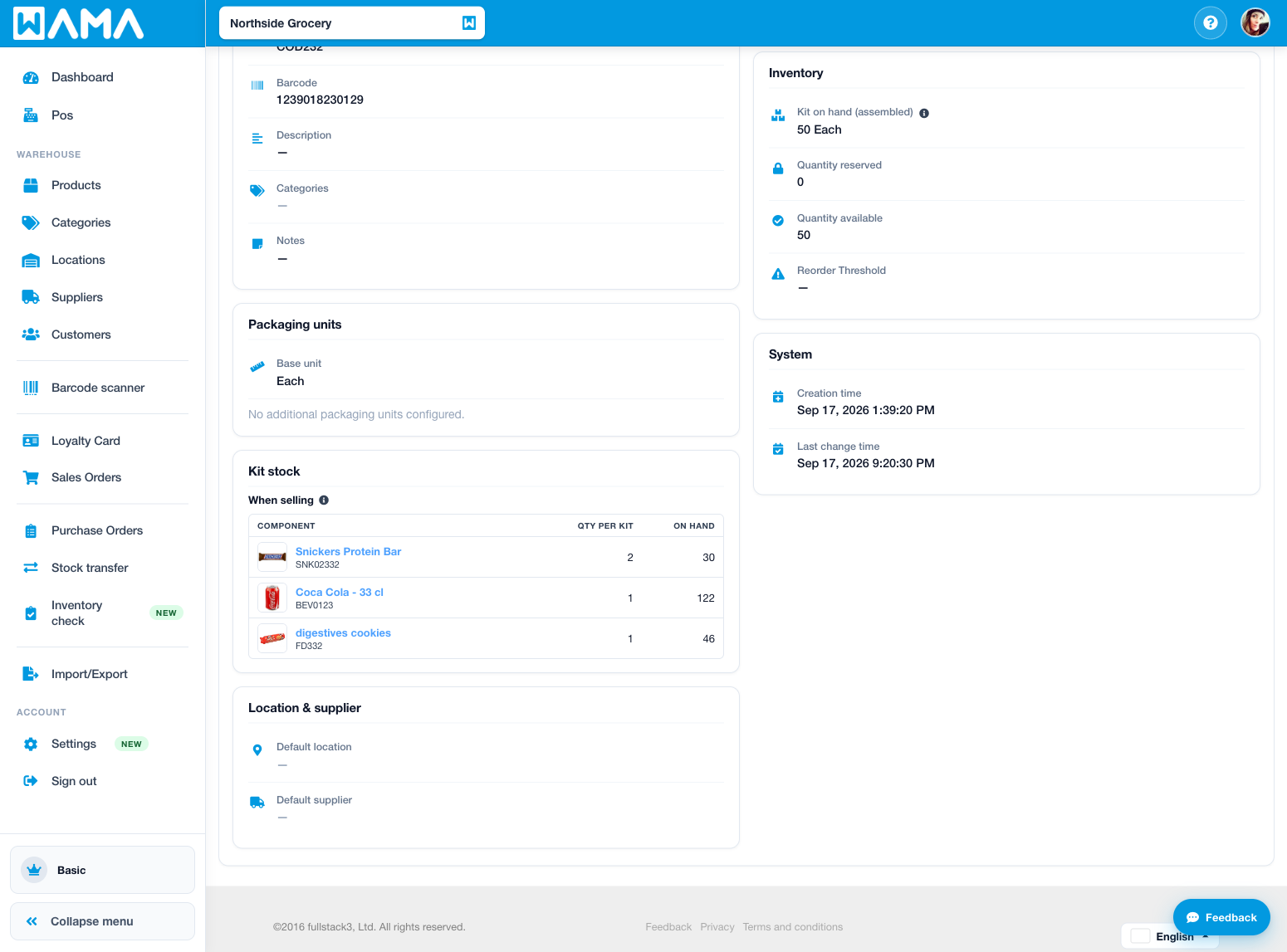
On POS or a sales order, add the kit product (for example code COD232). When you complete the sale:
- Sell from components — each component’s quantity is reduced by (kit quantity × qty per kit).
- Pack and sell assembled kits — kit on-hand is reduced; components were already consumed when you packed.
If there is not enough stock to complete the sale, the order may be saved as Pending until stock is available; completing that order later still requires enough stock.
Pack / unpack (assembled kits)
On the kit product page you can pack ready-made kits (consume components, increase kit on-hand) or unpack them. Use this when Pack and sell assembled kits is selected.