Inventory check
Inventory checks (also called stocktakes or cycle counts) let you verify product quantities over one or more sessions. You count in base units, see what is still left to check, and stock is updated only when you complete the check—uncounted products are left unchanged.
Accessing inventory checks
Section: Top menu Warehouse > Inventory check, or go to Inventory checks.
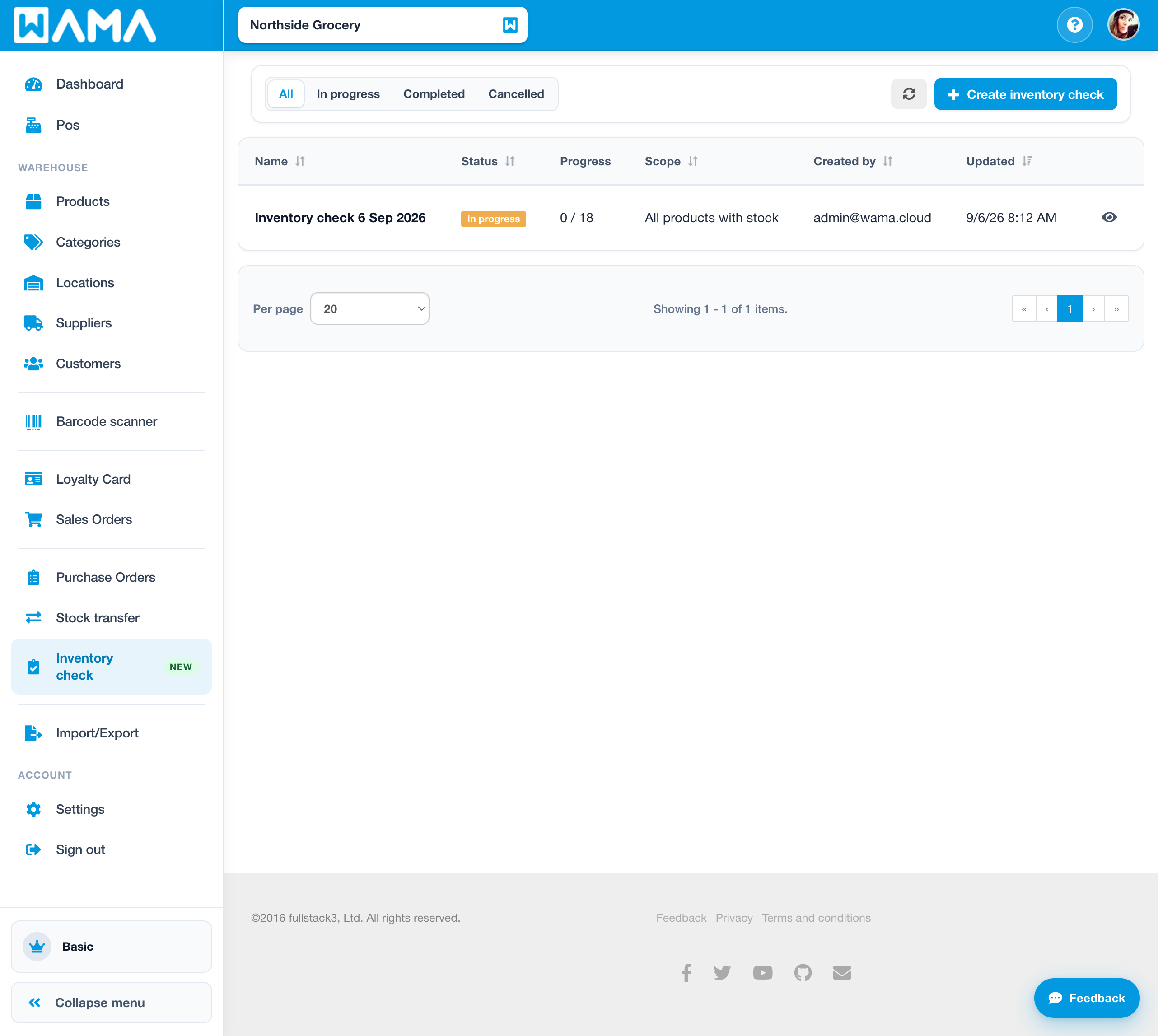
Create an inventory check
- Click Create inventory check.
- Optionally change the Name (a default name with today’s date is suggested).
- Choose a Scope:
- All products with stock — products with quantity greater than zero.
- All products — every product in the current point of sale.
- Category — products in one category (exact category only).
- Ad hoc (add as you go) — start empty and add products while counting.
- Optionally add Notes.
- Click Create and start. The check opens in In progress so you can count immediately.
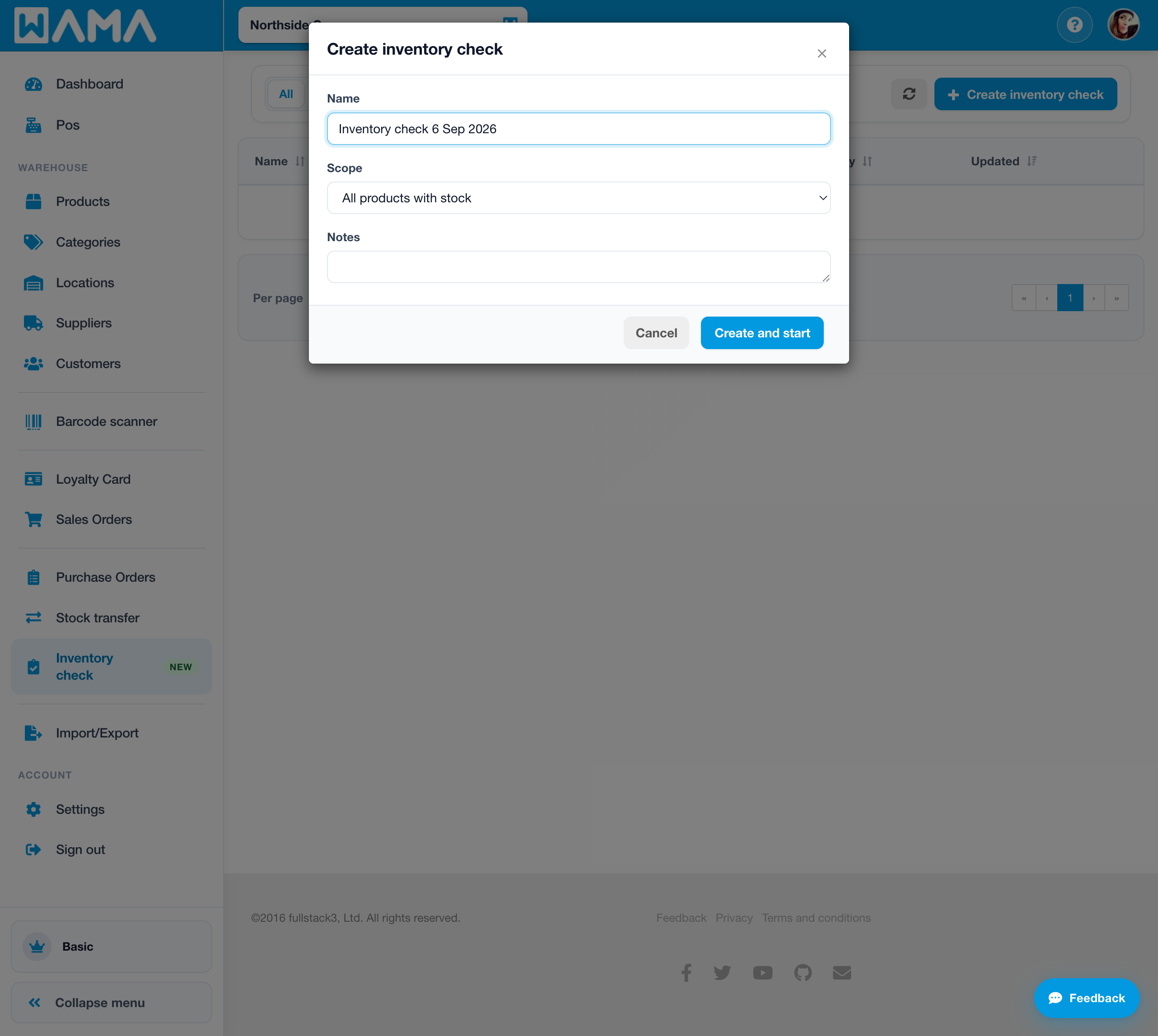
The check always applies to the point of sale selected in the header.
Count products
On the detail page you see progress (for example 0 / 18), variance count, and scope.
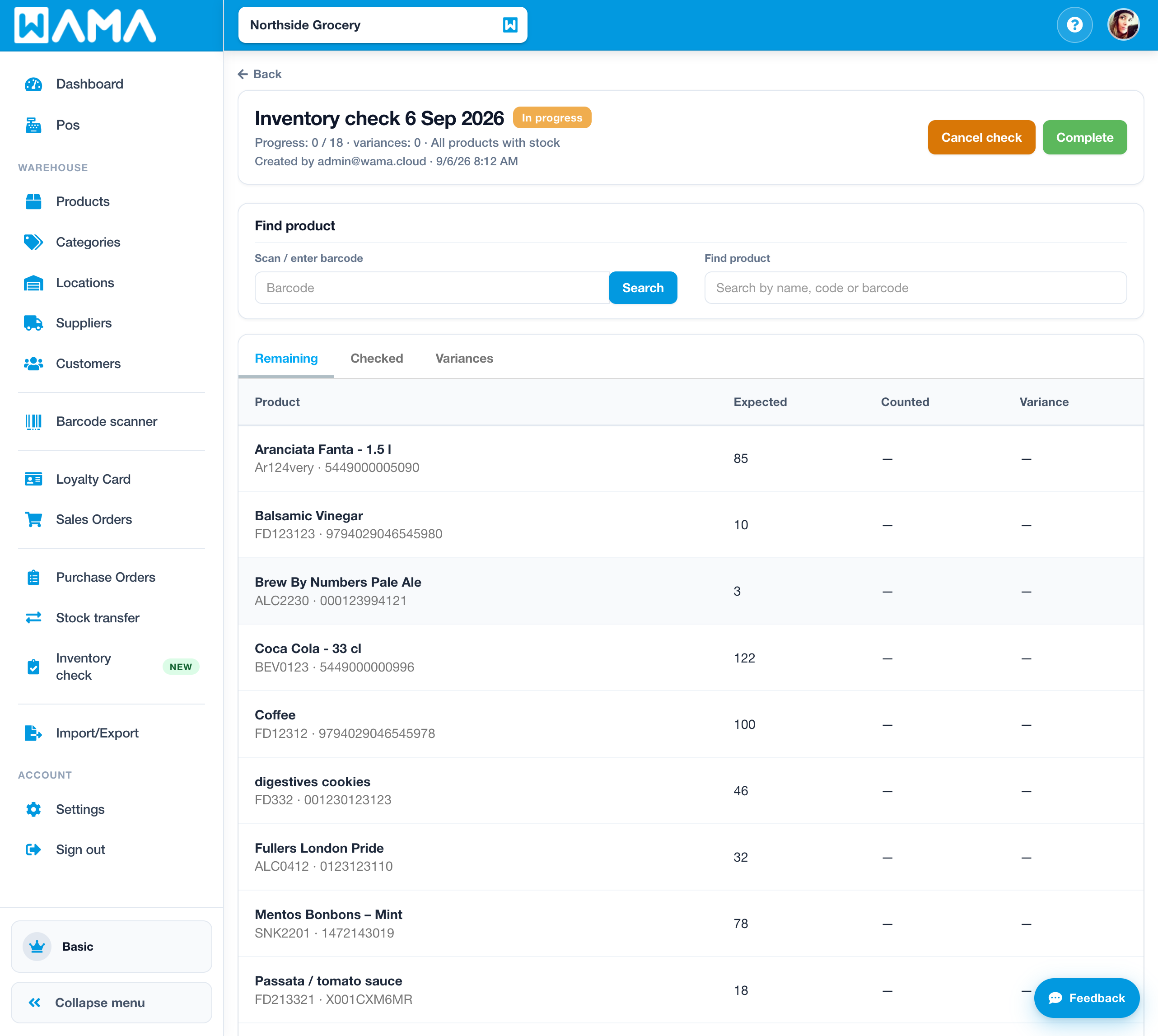
You can find a product by:
- Entering or scanning a barcode, then Search.
- Typing in Search by name, code or barcode.
- Opening a line in the Remaining tab.
Then enter the Counted quantity and click Save. The expected quantity is shown for reference (not a blind count).
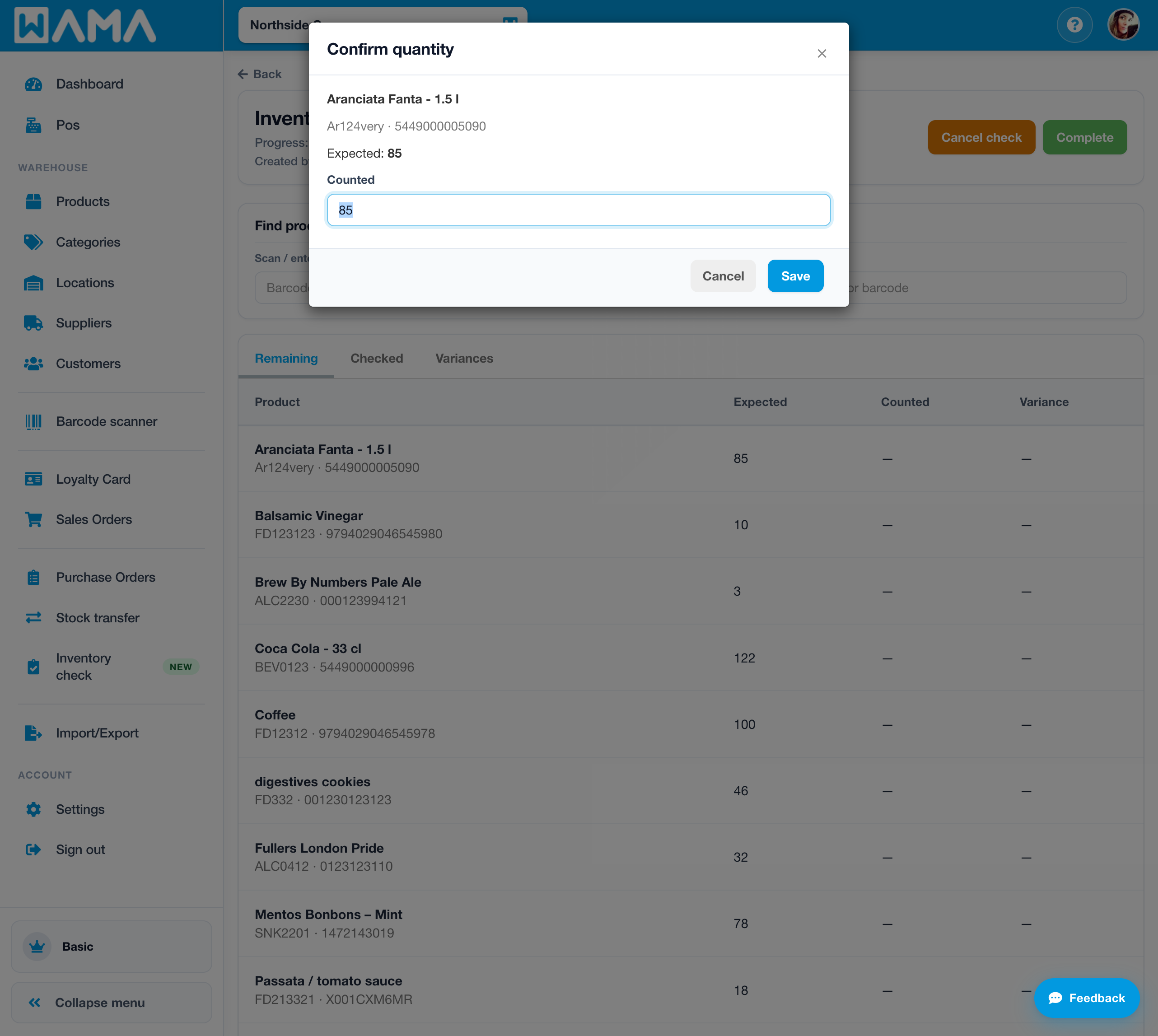
Tabs:
- Remaining — not counted yet.
- Checked — counted lines.
- Variances — counted lines where counted quantity differs from expected.
Complete or cancel
- Complete — applies stock adjustments only for counted lines where the quantity differs from expected. Products still in Remaining are ignored.
- Cancel check — closes the check with no stock changes.
Note
Counting does not change stock until you click Complete. You can leave some products uncounted and still complete the check.
Note
Android app: See Inventory check (Android) for the mobile workflow.