Lot numbers
Lot numbers
A lot number identifies a particular batch or quantity of material—for example a production run or shipment. In WAMA, lot numbers are linked to stock movements: whenever product quantity changes, you can assign one. You can also use the same feature to track serial numbers for individual items.
Note
Lot numbers are NOT enabled by default in WAMA. Enable the Lot numbers module in Settings > Modules (see below). A paid subscription is required.
Activate lot numbers
Section: Settings > Modules > Activate Lot numbers
Lot numbers are an optional module. Enable it here to show lot number fields, menus, and import/export columns in the web app.
Note
This feature is not available on the FREE plan. It is available on all paid subscription plans.
- Open Settings from the user menu and click Modules in the side menu.
- Find the Lot numbers module and switch it to Active.
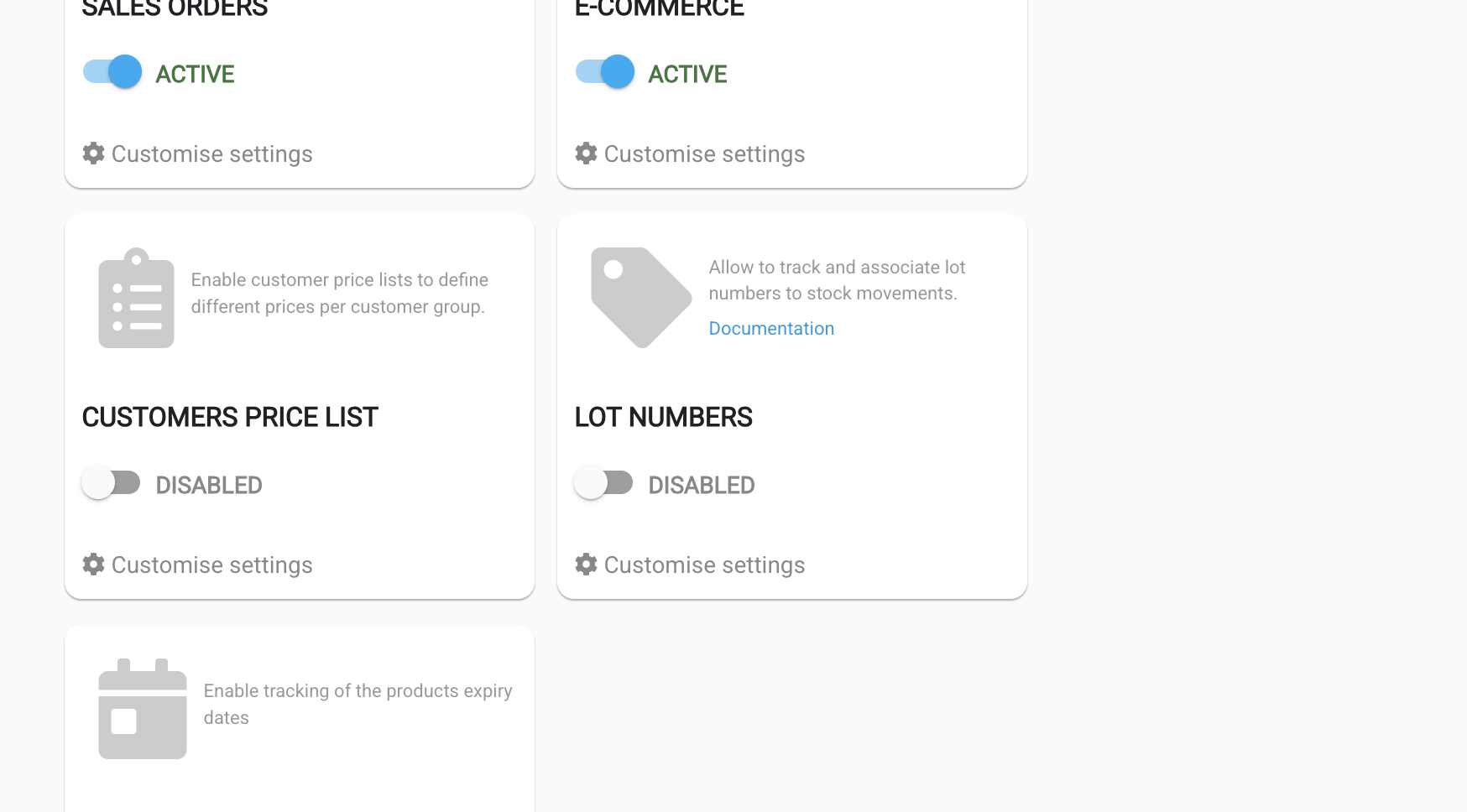
Note
Expiry dates are controlled separately by the Expiry dates module on the same page. Enable that module as well if you need expiry date tracking or import/export columns for best-before dates.
Lot numbers list
Section: Products > Lot numbers
Open Products, click the options menu in the top right, and select Lot numbers to see all open lot numbers in your warehouse. Use the search field to find one by name.
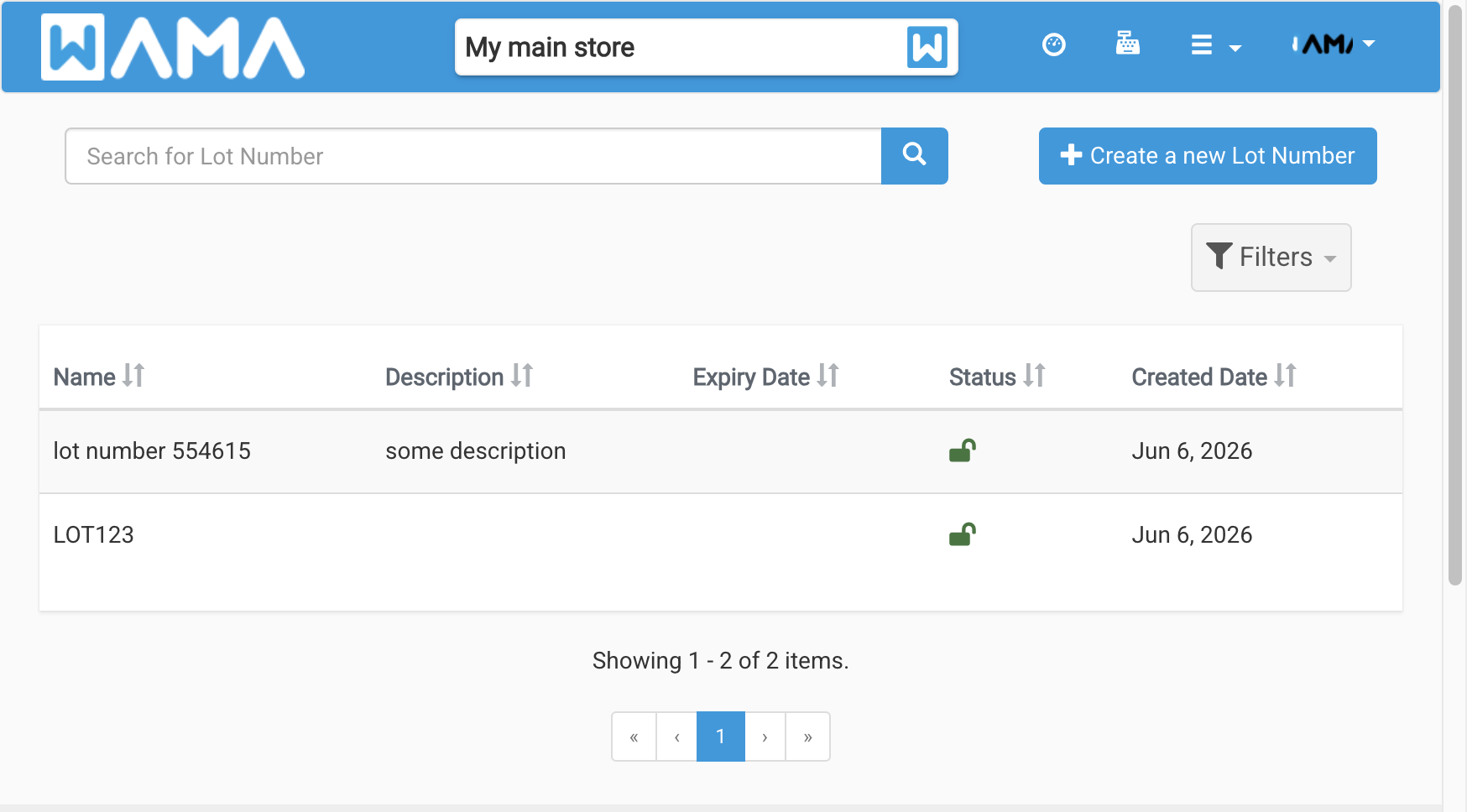
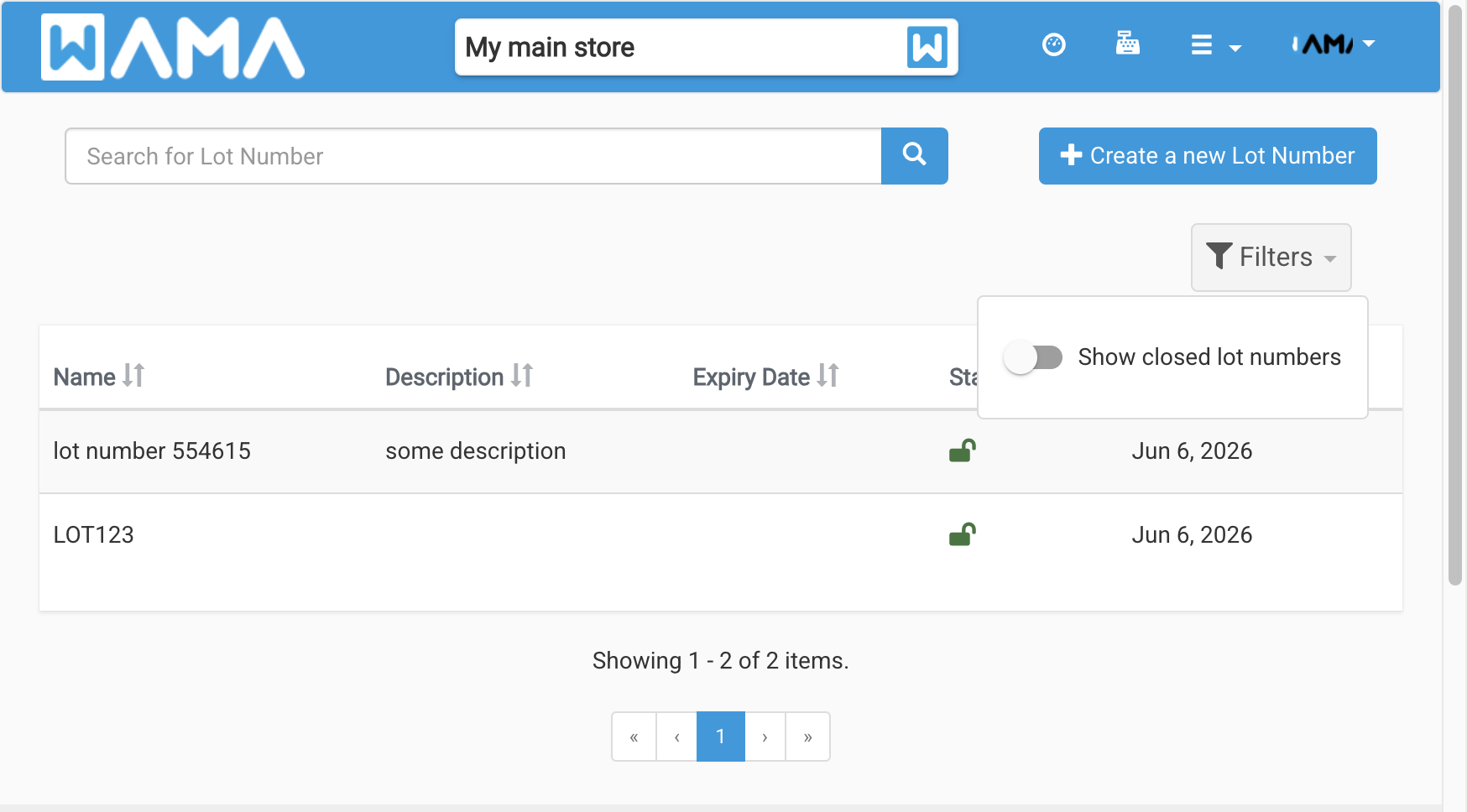
The table shows Name, Description, Expiry date, Status, and Created date. Click a row to open the details. By default, closed lot numbers are hidden—open Filters and enable Show closed lot numbers to include them.
Click Create a new Lot Number to add one from this page:
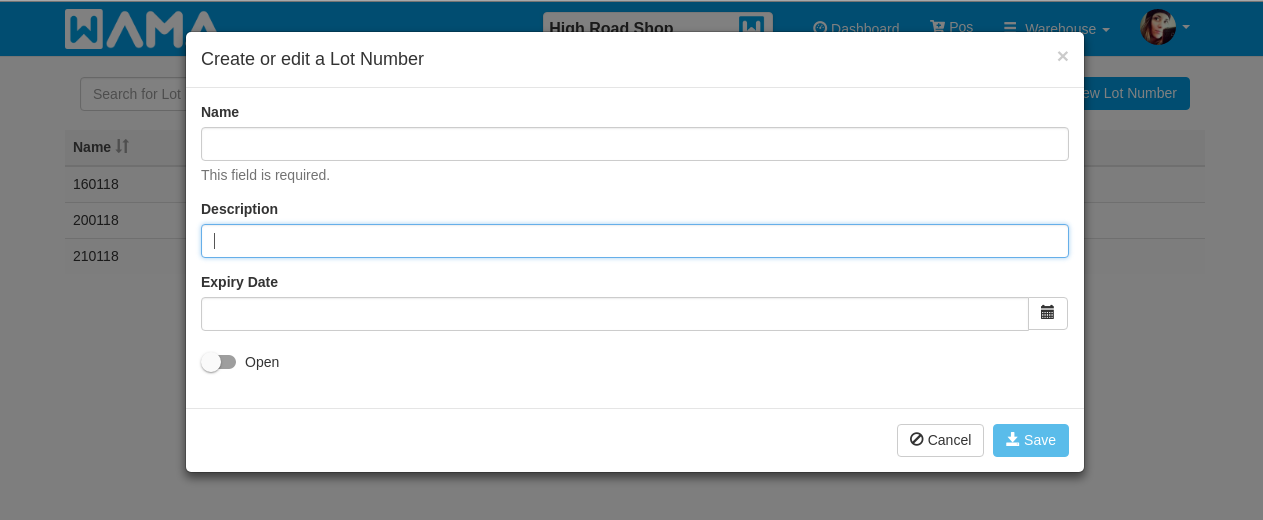
- Name (required): shown in the lot number dropdown when changing product quantity.
- Description (optional): additional notes.
- Expiry date (optional).
- State:
openby default; mark asclosedwhen finished—it will no longer appear when changing stock and cannot be modified.
Lot numbers in stock movements
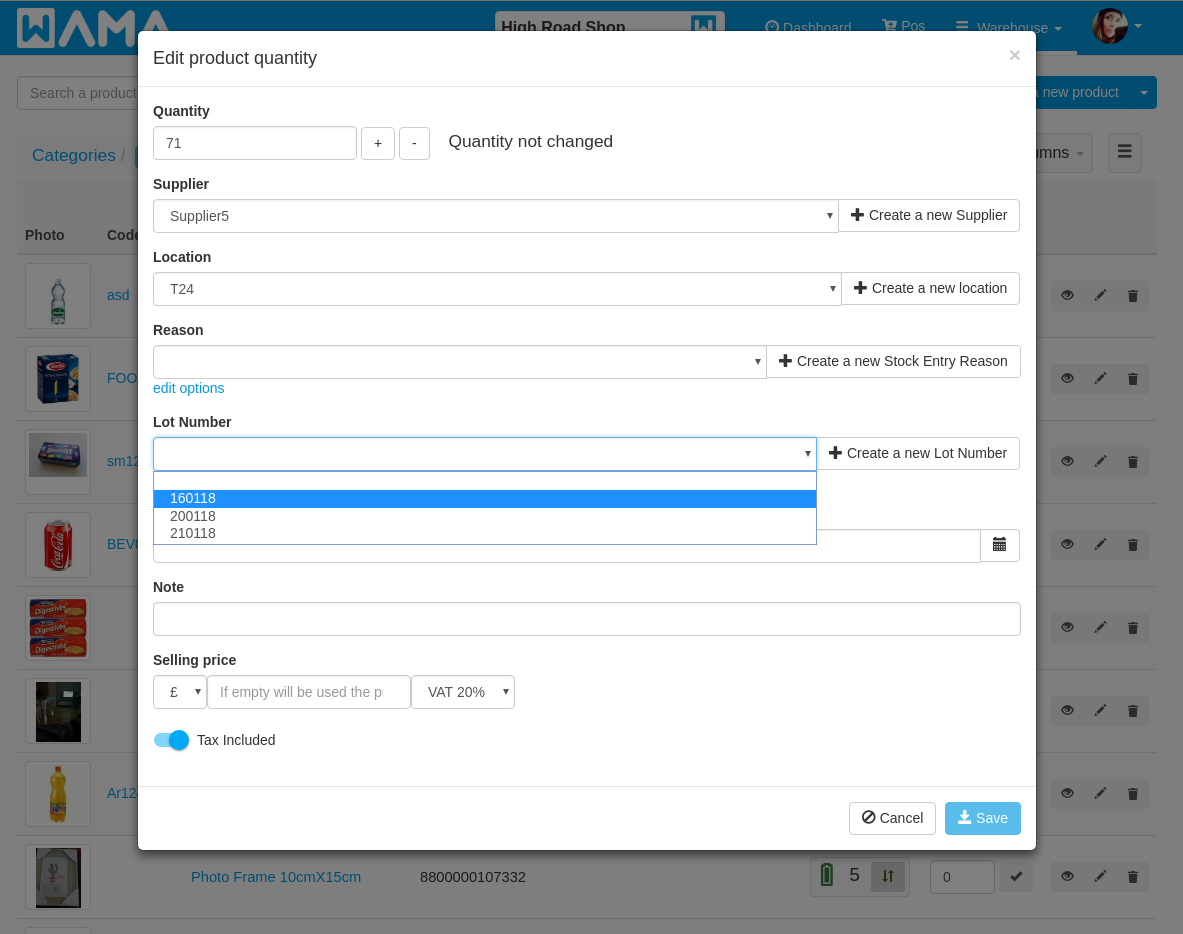
When changing product quantity you can select an existing lot number or create a new one.
- Increase quantity: select an existing lot number or click Create new lot number to enter a name on the spot (other fields can be filled in later from the lot numbers page).
- Decrease quantity: select an existing lot number only; available quantity is shown next to each name.
- Only open lot numbers appear in the dropdown.
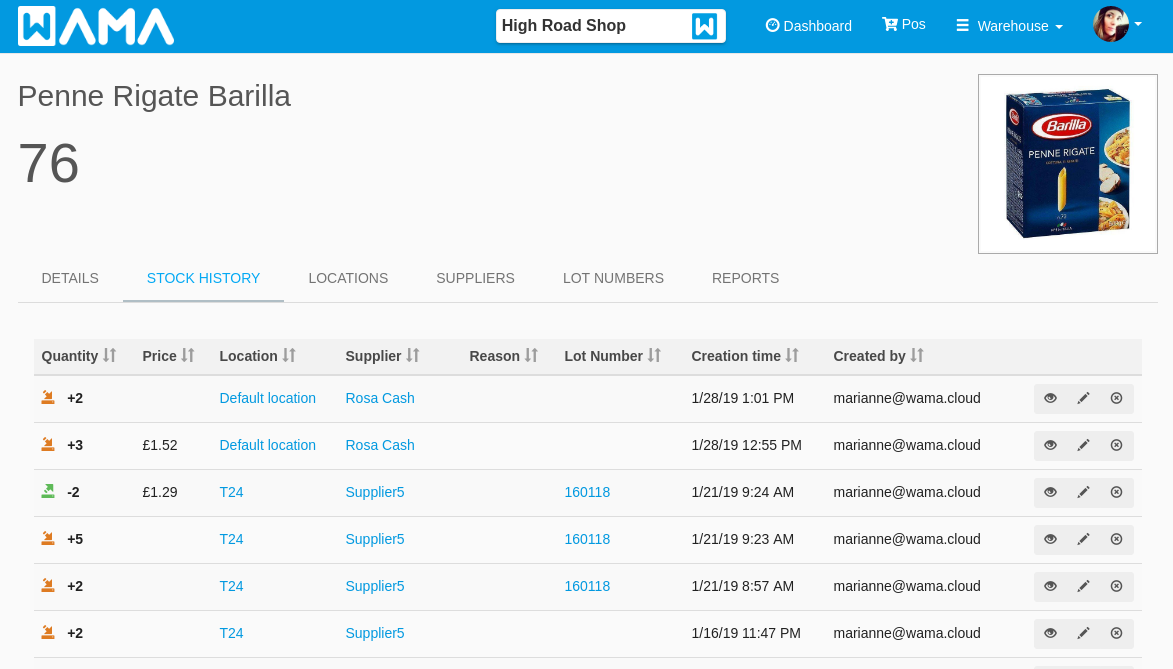
To change the lot number on a past movement, open the product Stock History tab and click the pencil icon next to the entry.
Lot number details
Section: Products > Lot numbers > Click on an existing lot number
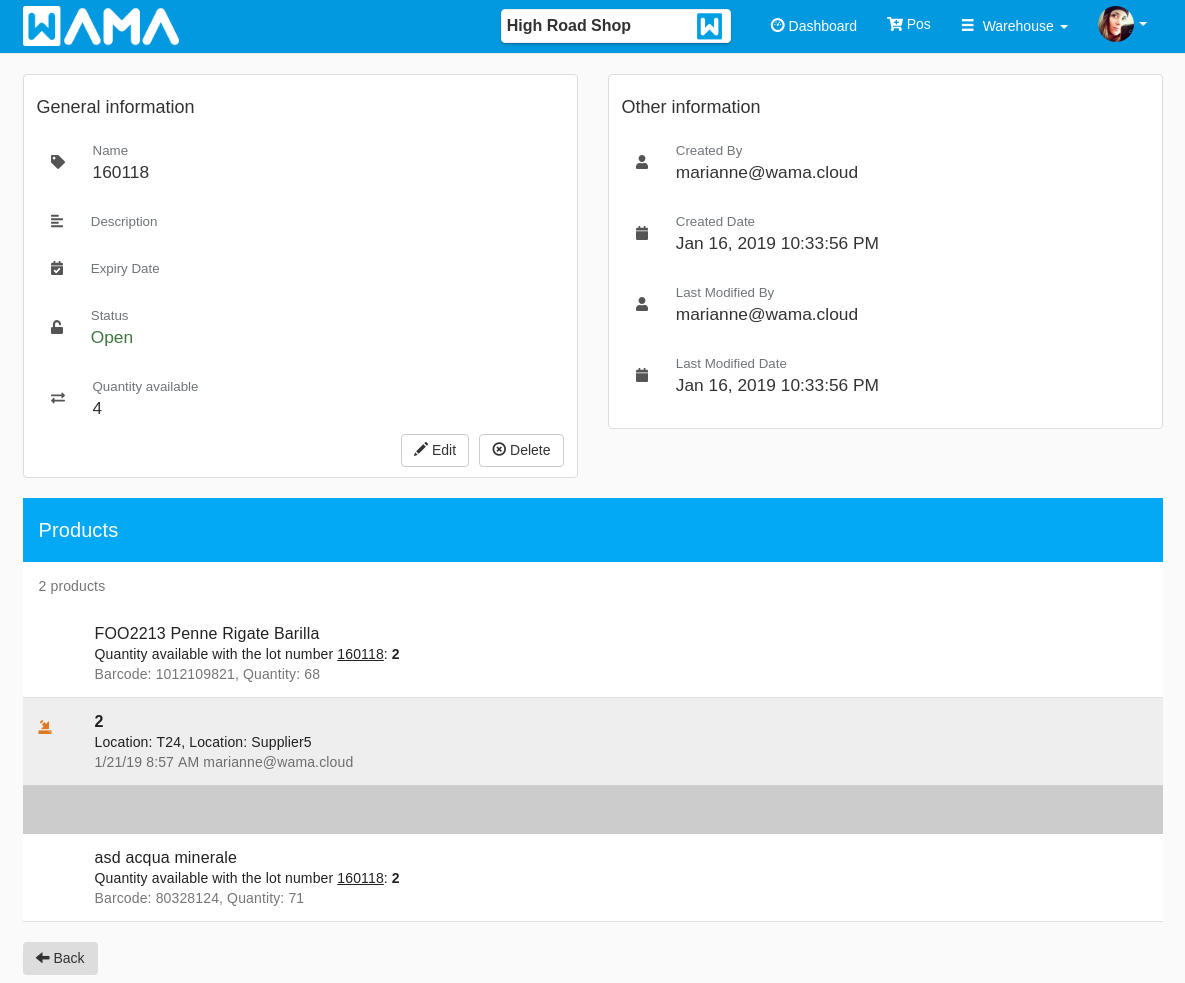
- Quantity available: total stock in the warehouse with this lot number.
- Products: all products using this lot number and their quantities; click a product to see its stock movements.
- Edit or Delete the lot number from this page.
Note
A lot number that was already used in a stock movement cannot be deleted. Edit or remove the related stock history entries first.
Product lot numbers tab
Section: Products > Open an existing product > Lot number tab
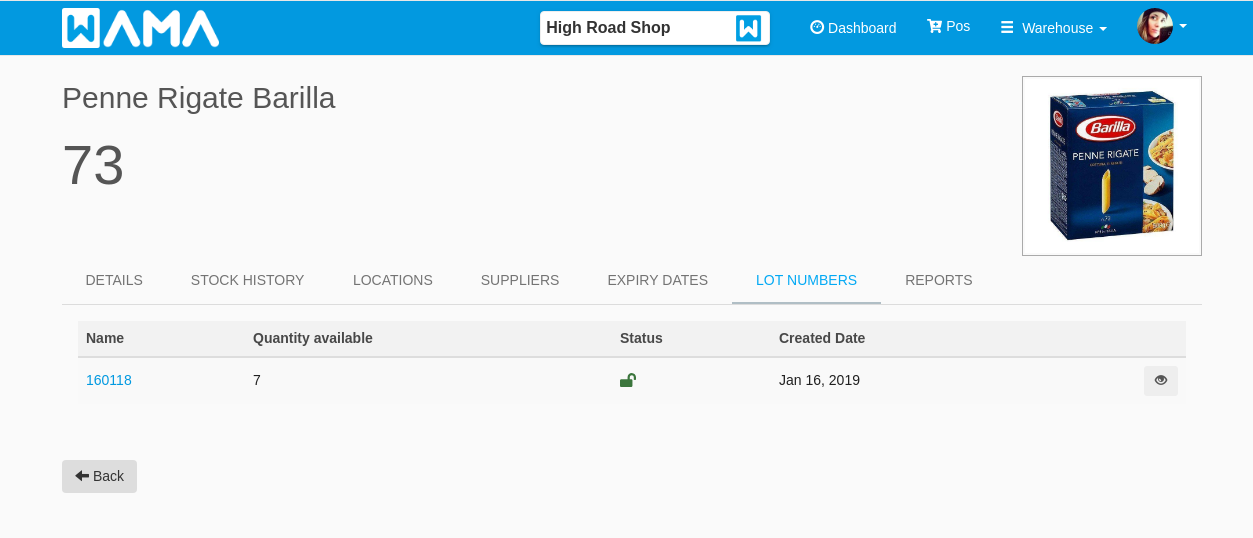
Shows all lot numbers assigned to the product and the quantity available for each.
Import and export
Section: Import/Export > Import > Products template
When the Lot numbers and/or Expiry dates modules are enabled, the product import template and warehouse export include optional Lot number and Best before date columns.
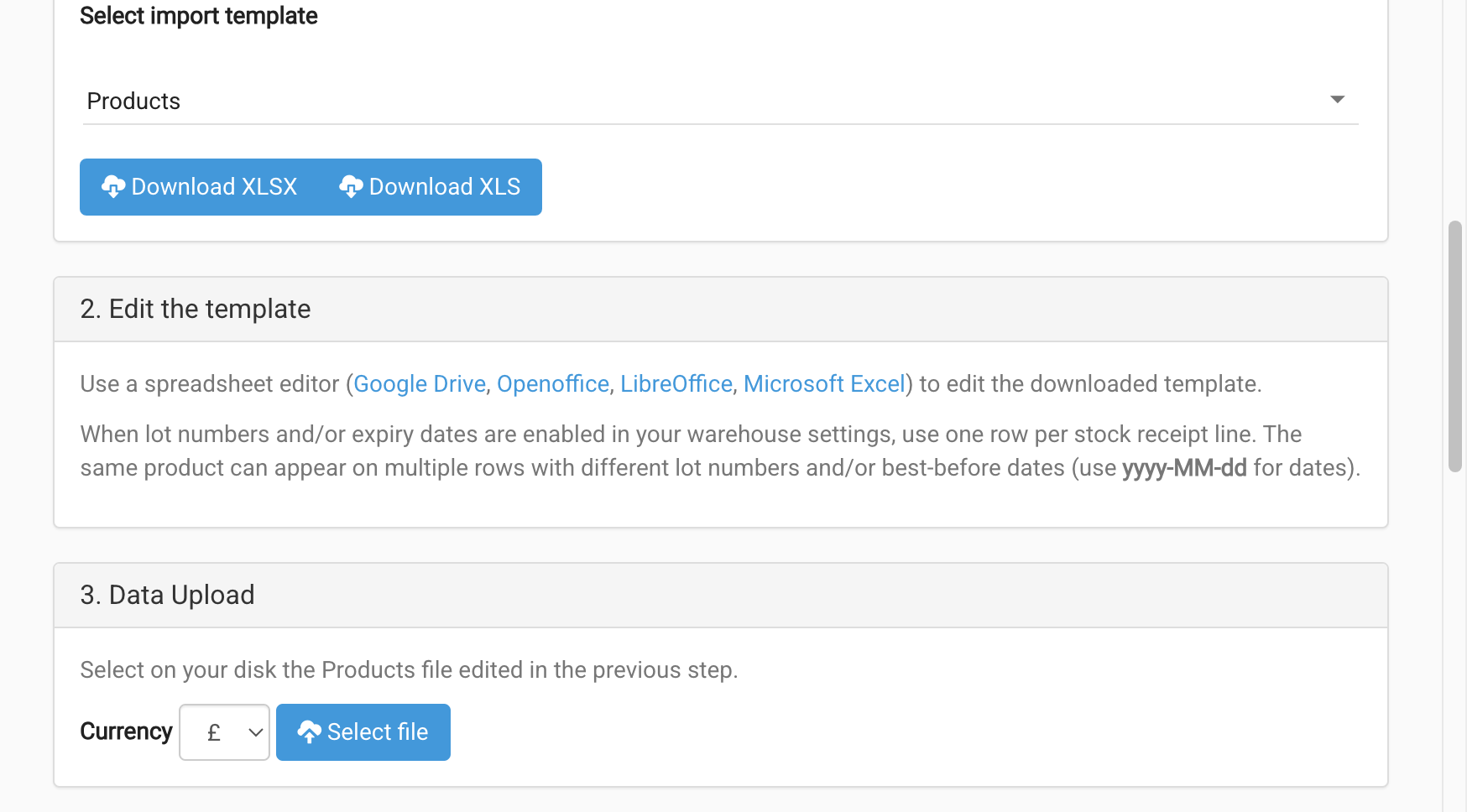
Use one row per stock receipt line. The same product can appear on multiple rows with different lot numbers and/or best-before dates. Use the yyyy-MM-dd format for dates (for example 2026-12-31). Step 4 of the import preview shows lot number and expiry date for each row.
Note
Export and import use the same Products sheet format. Re-importing adds stock for each row; it does not replace existing stock levels. The Stock entries sheet in the export file is for reference only.