Import / Export
Use Import / Export to load or download warehouse data with spreadsheet files (XLS / XLSX).
Section: Top menu Warehouse > Import/Export, or go to Import/Export.
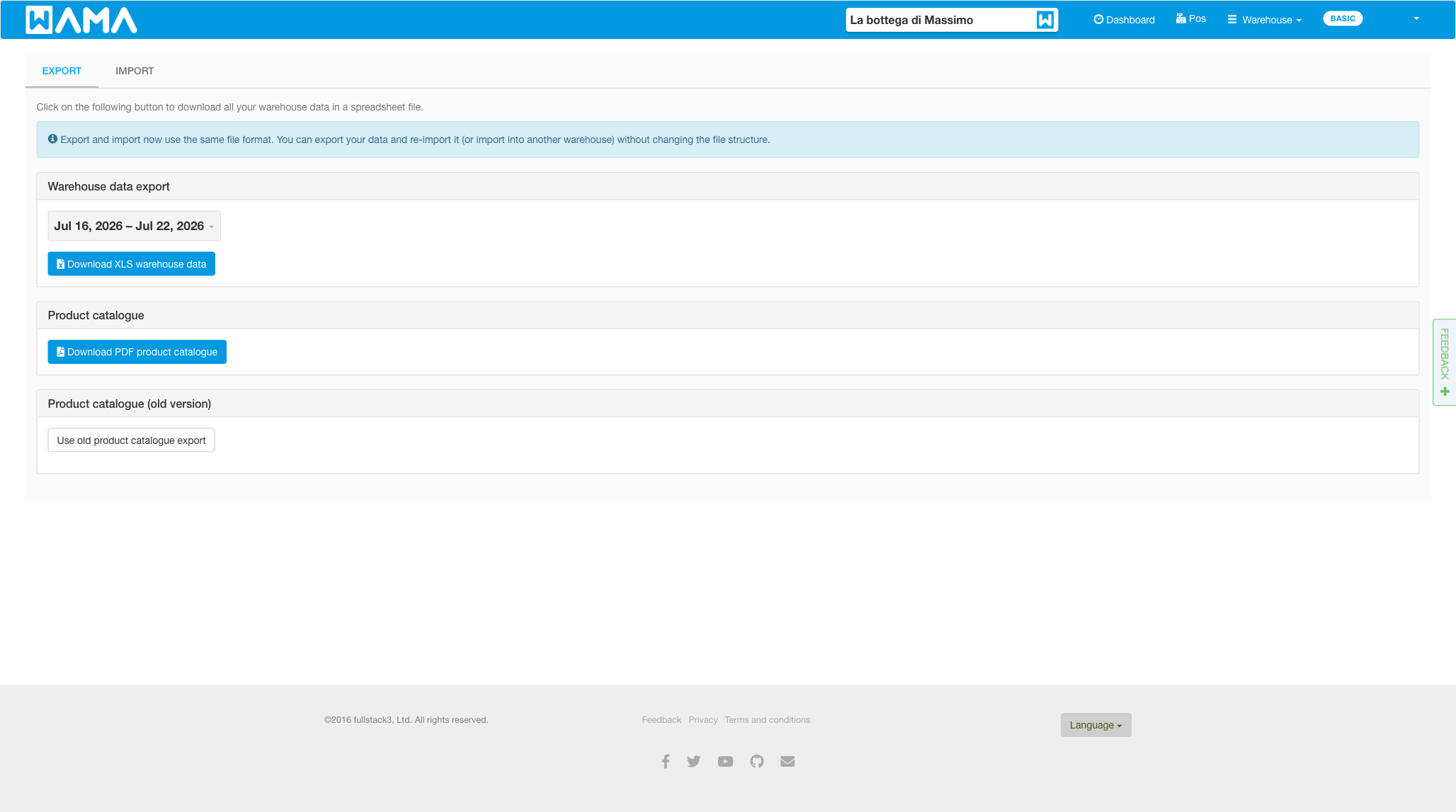
The page has two tabs: Export and Import.
Export
Export builds an Excel file with multiple sheets (for example Products, Stock entries, Locations, Suppliers, Customers, and related order/transfer data).
- Open the Export tab.
- Optionally set a date range for transactional sheets.
- Start the export. The job runs in the background (Pending → Processing → Completed or Failed).
- When finished, download the file. Large exports may also send a download link by email.
Only one export (or import) job can run at a time per point of sale.
Import
- Open the Import tab.
- Download the template for Products, Locations, or Customers.
- Fill the spreadsheet (first sheet only; up to 10,000 rows). On the web app the upload size limit is 2 MB.
- Upload the file, review the preview, then confirm.
Products template
Typical columns include: ID, Code, Name, Barcode, Description, Quantity, prices and tax, Reorder Threshold, Categories, Default Supplier, Default Location, Custom Fields, Photo URL.
When the Lot numbers and/or Expiry dates modules are enabled, optional columns Lot number and Best before date are added at the end. Use one row per stock receipt line; the same product can appear on multiple rows with different lots or dates. Use the date format yyyy-MM-dd (for example 2026-12-31).
How products are matched
On import, WAMA tries to match each row to an existing product in this order: ID, then Barcode, then Code. Matched rows update the product; unmatched rows create a new product.
Note
A non-zero Quantity in the import file adds stock for that row. It does not replace the current warehouse quantity. The Stock entries sheet in an export file is for reference only and is not used when importing.
Locations and customers
- Locations are matched by ID or Code.
- Customers are matched by ID or Email.
See also Lot numbers for more detail on lot and expiry columns.
Note
Android app: See Import / Export (Android) for the mobile app workflow.