Expiry dates
Expiry dates (best-before dates) let you record when a quantity of a product expires. They can be associated with stock movements, stock transfers, and product import.
Note
Expiry dates are not enabled by default. Enable the Expiry dates module in Settings > Modules. A paid subscription is required.
Activate expiry dates
Section: Settings > Modules > Expiry dates
- Find the Expiry dates module and switch it to Active.
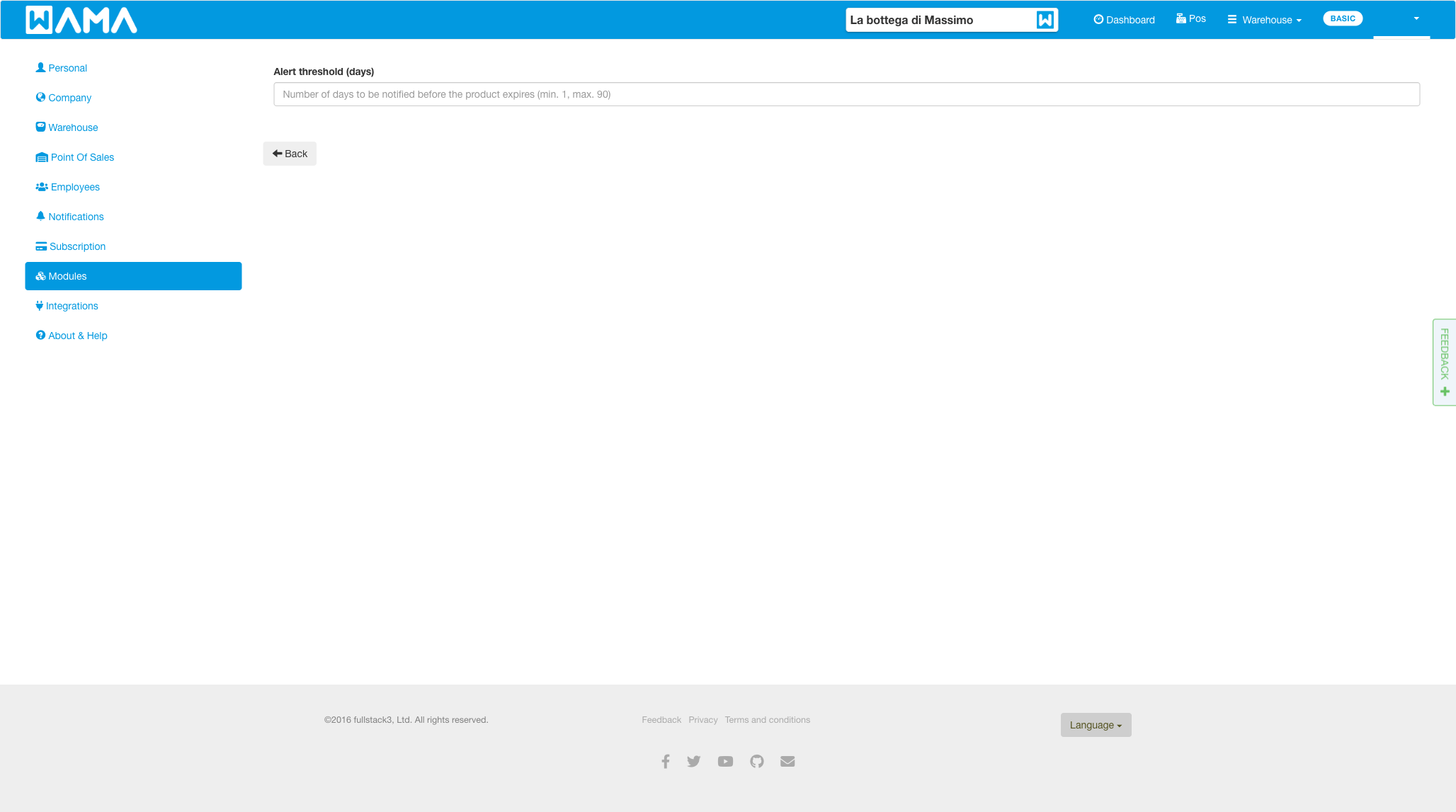
- Click Customise settings to set the Alert threshold (days) (from 1 to 90, default 90). Products that expire within this number of days appear on the dashboard.
Add an expiry date to a stock movement
When you change a product quantity, you can set a Best before date / Expiry date:
- When increasing quantity, pick a date (for example with the calendar).
- When decreasing quantity, select an existing expiry date that still has stock for that product. The available quantity is shown next to each date.
Expiry dates are optional on stock movements (unlike lot numbers, which can be required — see Lot numbers).
Stock transfers
Expiry dates can also be set on stock transfer lines when the module is active. Use Split line by lot/expiry if you need several expiry dates for the same product.
Dashboard
When the module is active, the Dashboard shows Products about to expire: products with quantity greater than zero that are already past expiry or within the alert threshold (up to 20 products).
Import and export
When Expiry dates is enabled, the product import template and warehouse export include an optional Best before date column. See Import / Export.
Note
Android app: See Expiry dates (Android) for load and unload with an expiry date on the mobile app.