Loyalty cards
Loyalty cards let you offer special prices at the POS when a customer presents a card number. On Android you can create and edit cards, share a printable barcode, and set an optional loyalty card price on products.
For the full web workflow (types list, print card layout, and POS apply), see Loyalty cards.
Access loyalty cards
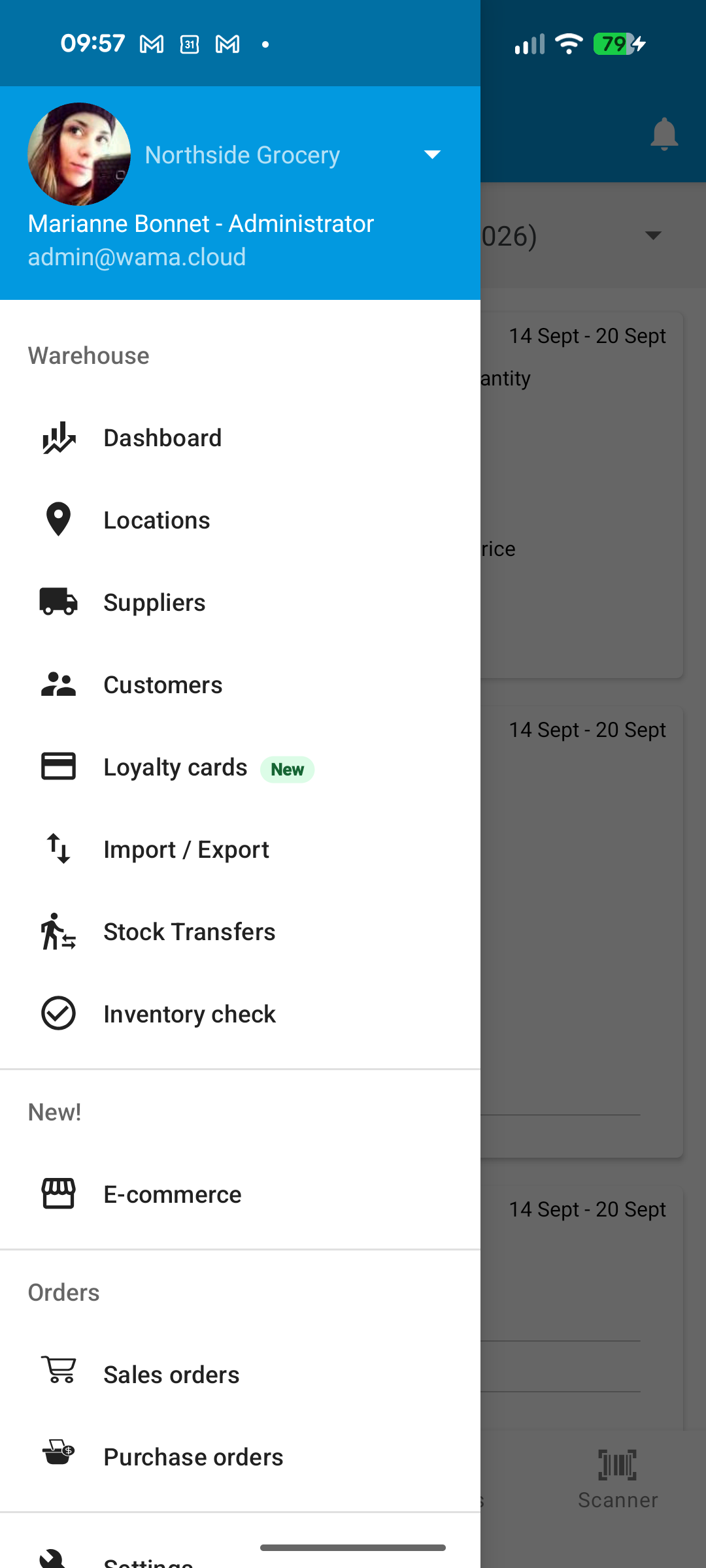
Open the menu and go to Warehouse > Loyalty cards.
Create or edit a card
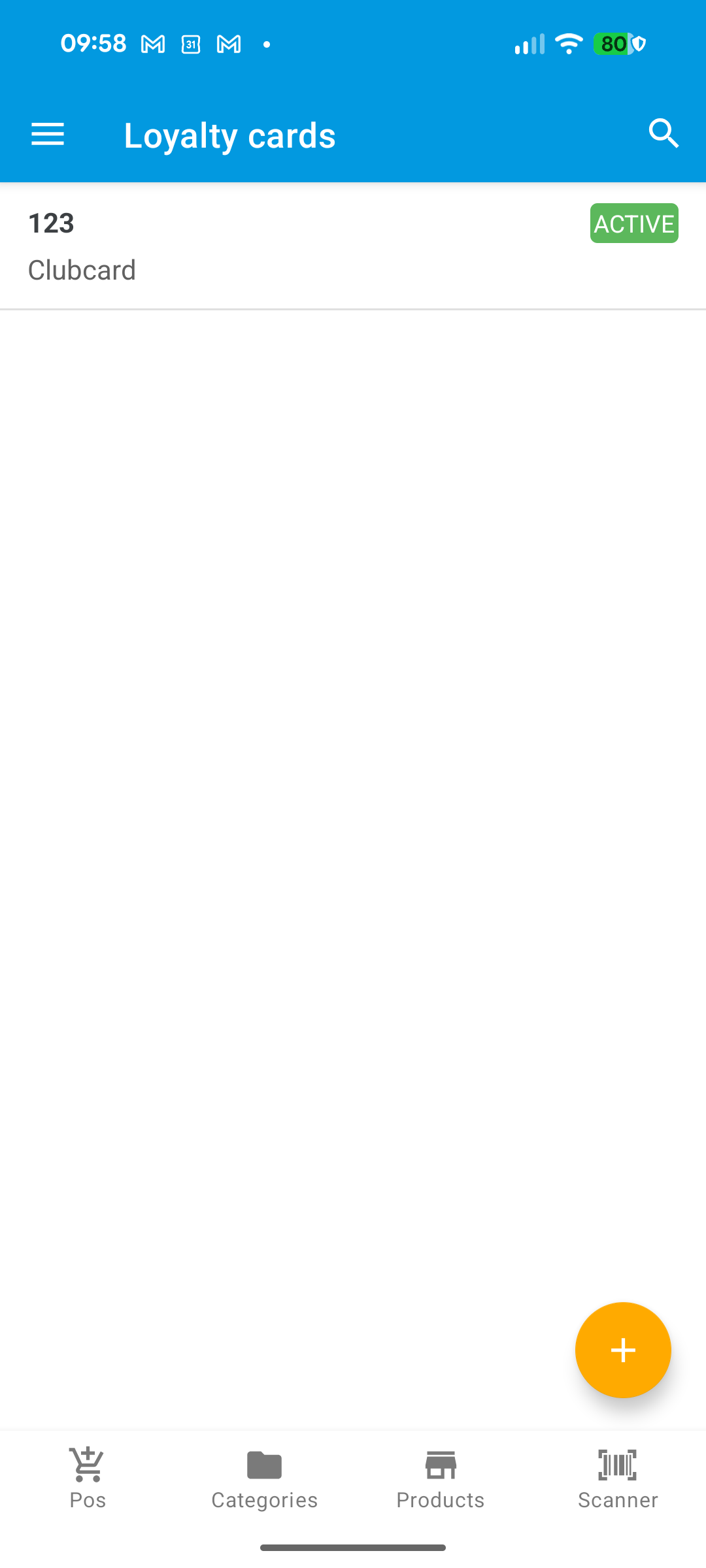
- Tap + to create a card, or tap an existing row to edit.
- Choose or create a Loyalty card type (types group cards and can offer different discounts).
- Optionally set Card number (autogenerated if left empty), Customer, Points, Expiry date, and Active.
- Tap the checkmark to save.
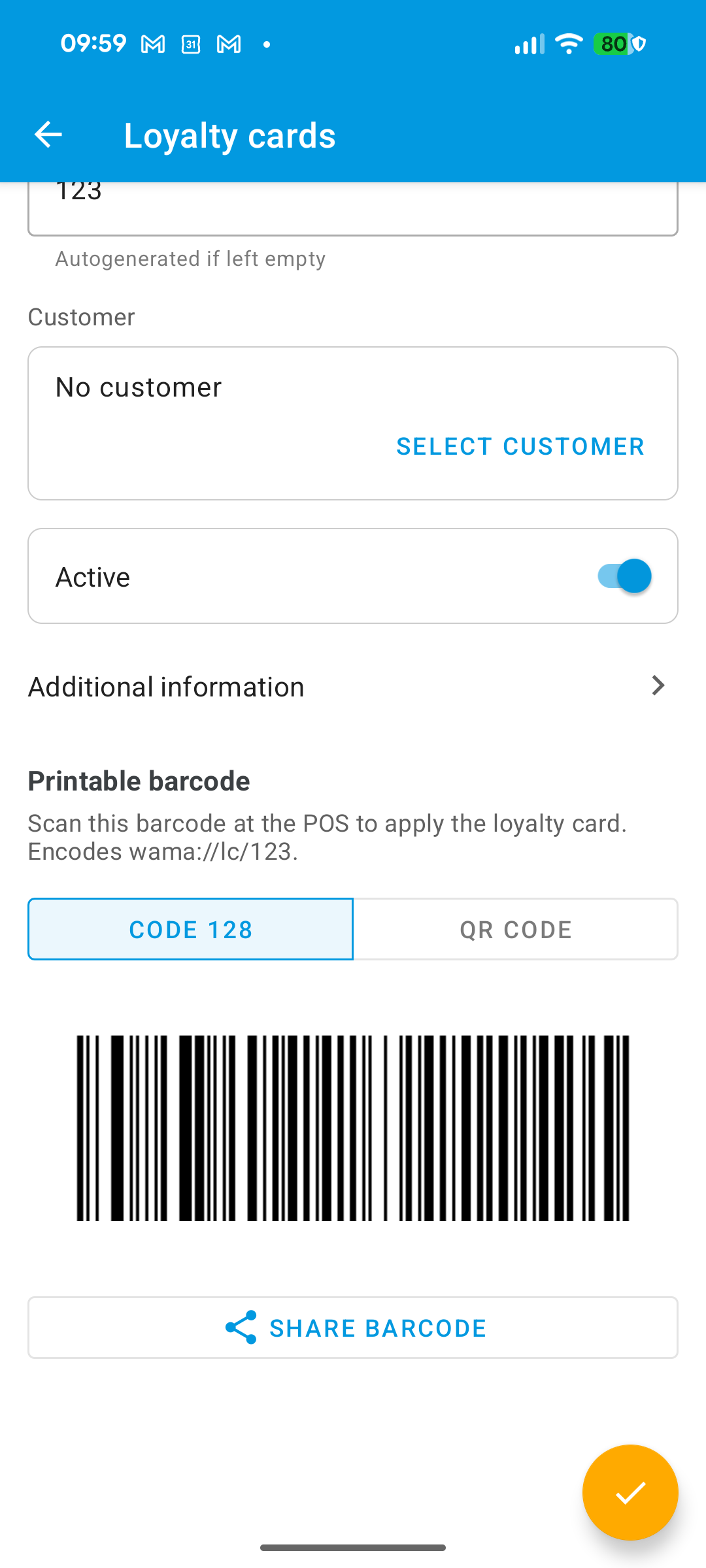
After the card is saved, open it again to use the Printable barcode: switch between Code 128 and QR code, then Share barcode.
Product loyalty price
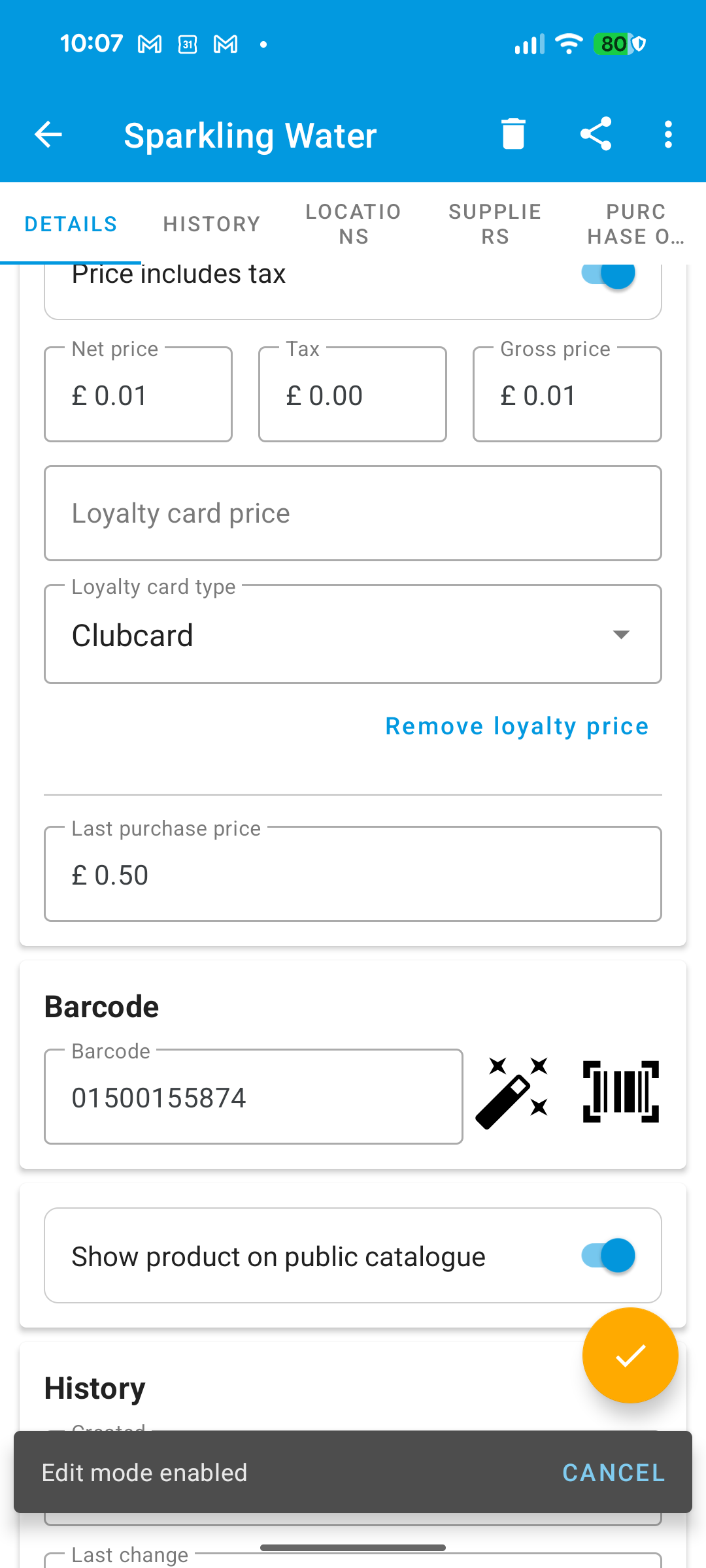
On a product (create or edit), in the Price section:
- Set a selling price first.
- Tap Add loyalty price.
- Enter the Loyalty card price and choose a Loyalty card type.
- Save the product.
Tap Remove loyalty price if you no longer want a special price for that type.
Note
Make sure the correct point of sale is selected in the navigation drawer. Loyalty cards and prices are scoped to the current point of sale.